CalqFrançaisOpen Calq
Learn Calq: a building from A to Z / Part 4 Massing
Design options
Try a part of the model another way, flip between the options in every view, compare them, and settle on one.
You will make two options of a block of flats, change the second, compare them on one plan and see how to keep one.
01Make an option
Choose Options in the Edit toolset and drag a box round a part of the plan (or select it first). What stands there becomes option A, the main one, and B, a copy, is in the model at once for you to change. The cards beside the part name it and its options; the rest of the building is shared by both.
02Change option B
With B shown, change it like any part of the model: here the block rises to six storeys and is turned 30 degrees with the +15° button, twice. Option A is not touched.
03Flip and compare
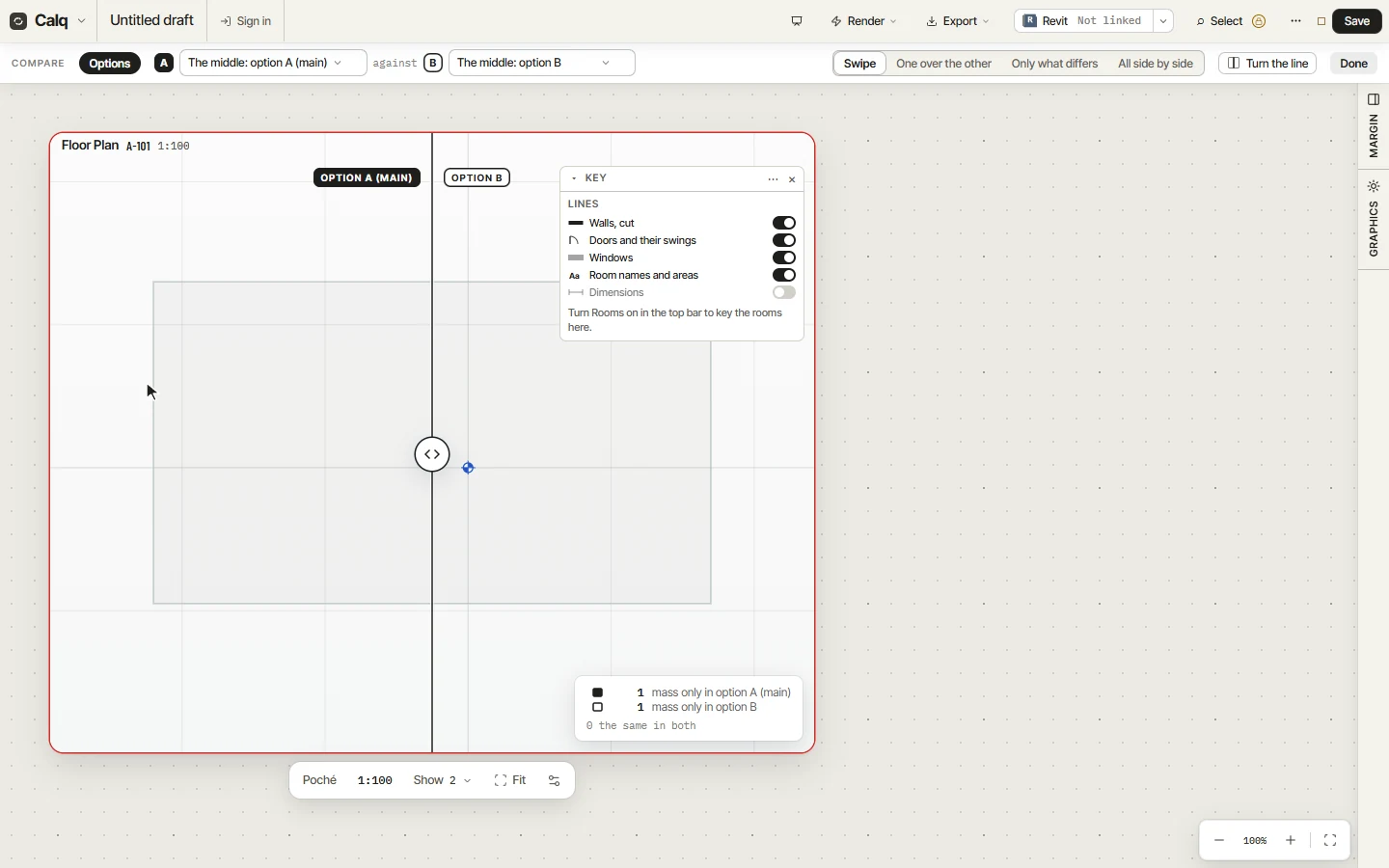
Click a card to show that option: the building flips between them in every view, sheet and schedule. Compare puts both on one plan, with a line to swipe across, one over the other, only what differs, or side by side, and counts what is only in each.
04Settle on one
When the choice is made, Make main turns an option into the main one, Take away drops it, and Settle on keeps one and ends the options for that part. + try it another way adds an option C.