CalqFrançaisOpen Calq
Learn Calq: a building from A to Z / Part 0 Start here
Open Calq and start a model
Open the modeller in your browser, choose your language and see how a draft becomes a saved model.
You will open a new, empty model on the board, close the assistant panel for this hand-drawn course, set your language and find where your work is saved.
01Go to calq.live
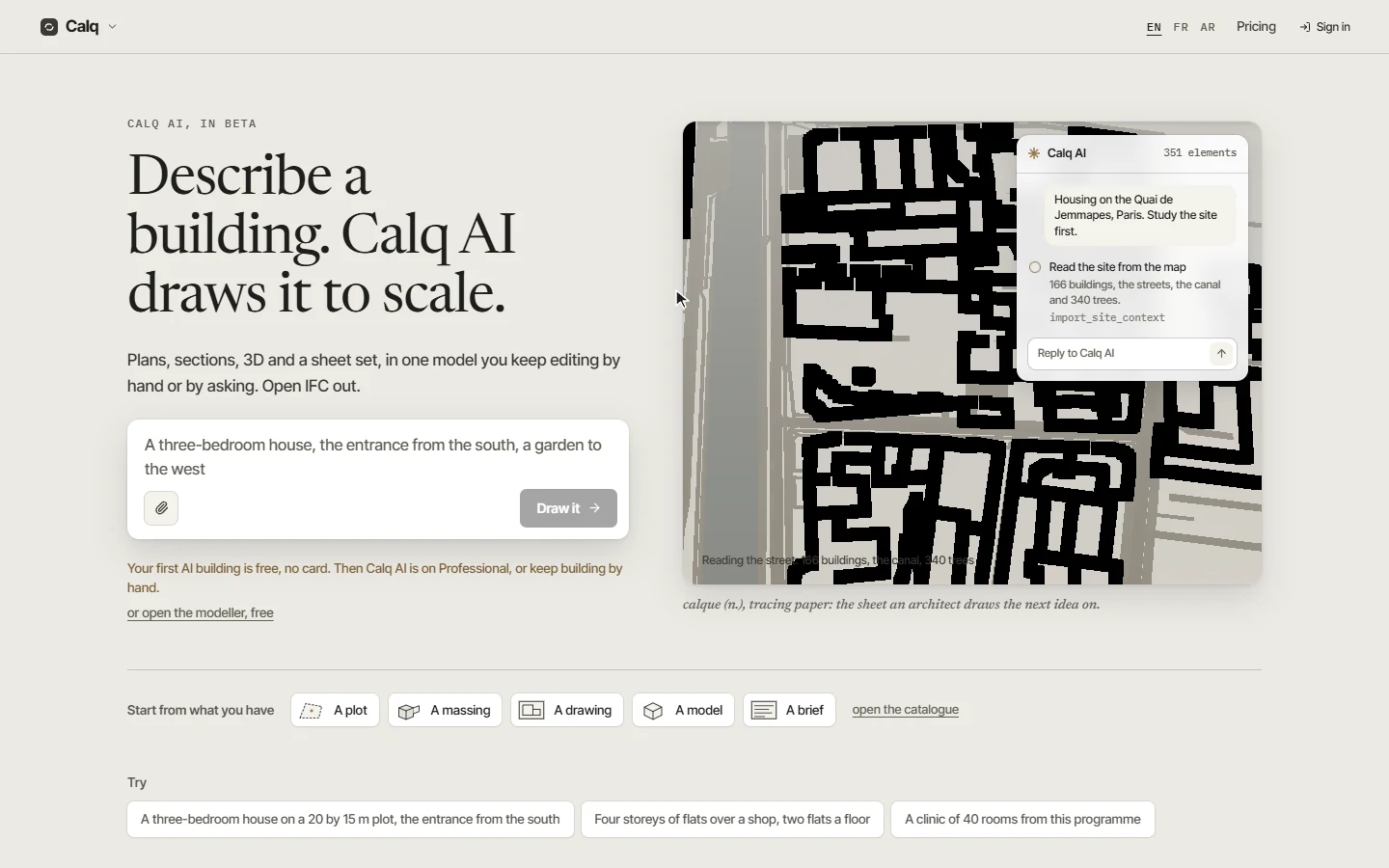
Calq runs in the browser: there is nothing to install. The front door has a box where you describe a building to Calq AI, and under it the things you can start from: a plot, a massing, a drawing, a model or a brief.
This course draws by hand, so it starts from the empty modeller. The link to it sits under the box: "or open the modeller, free".
02Open the modeller
Click "or open the modeller, free". A new model opens on the board as an "Untitled draft", with one view open: Floor Plan - Level 1. You can draw at once, without an account.
A panel for Calq AI opens on the right of a new board. The lessons of this course work by hand, so close it with the cross at its top right.
03The Calq menu
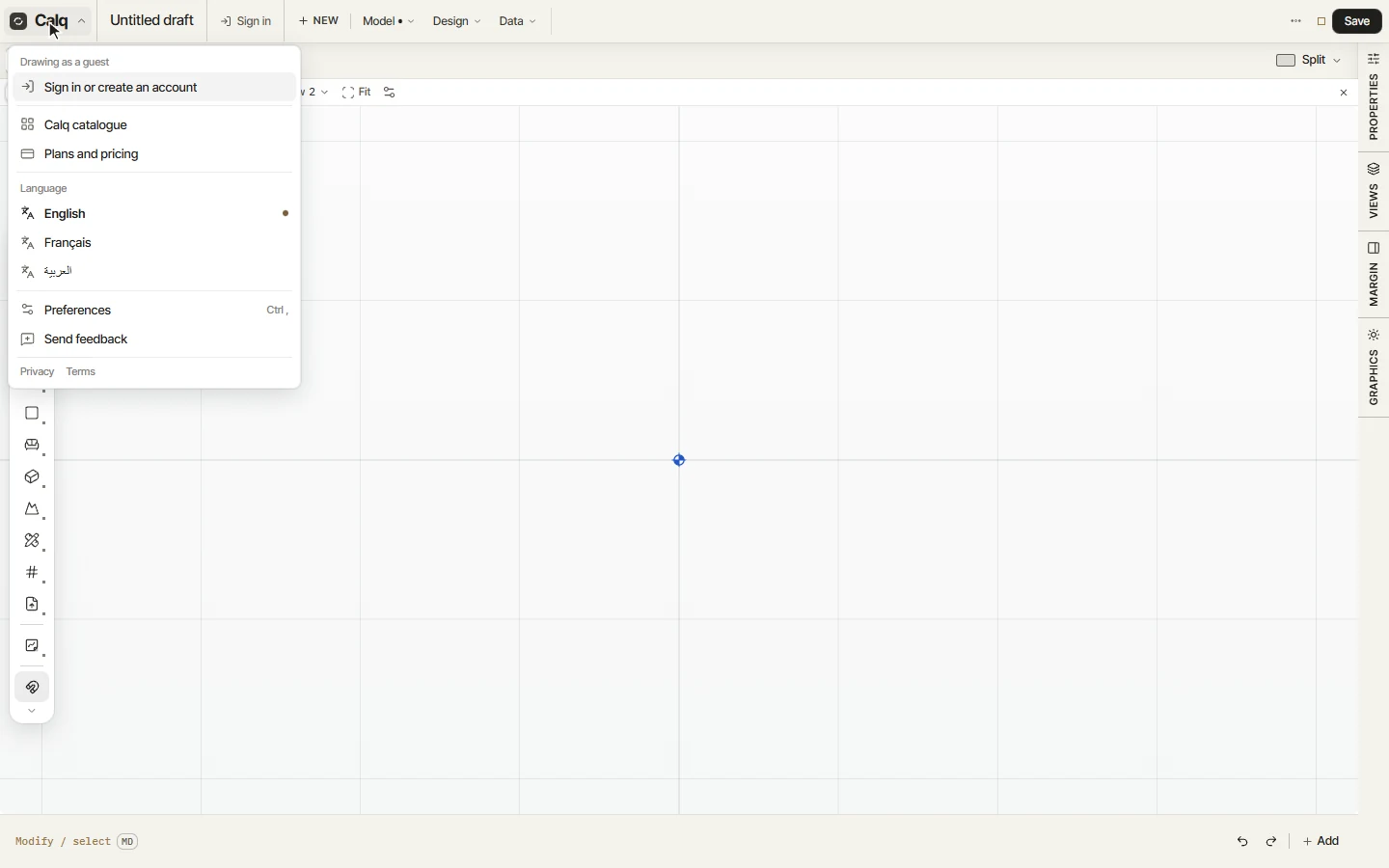
Click Calq at the top left. The menu holds your account (sign in or create one), the Calq catalogue of buildings to start from, the plans, and the language of the interface.
- Language: English, Français or Arabic. The whole interface changes at once.
- Preferences (Ctrl + ,): your own settings, such as the look, the snaps, the scale reading and the drafting keys.
- Send feedback: tell us what worked and what did not, from wherever you are.
04Save your drawing
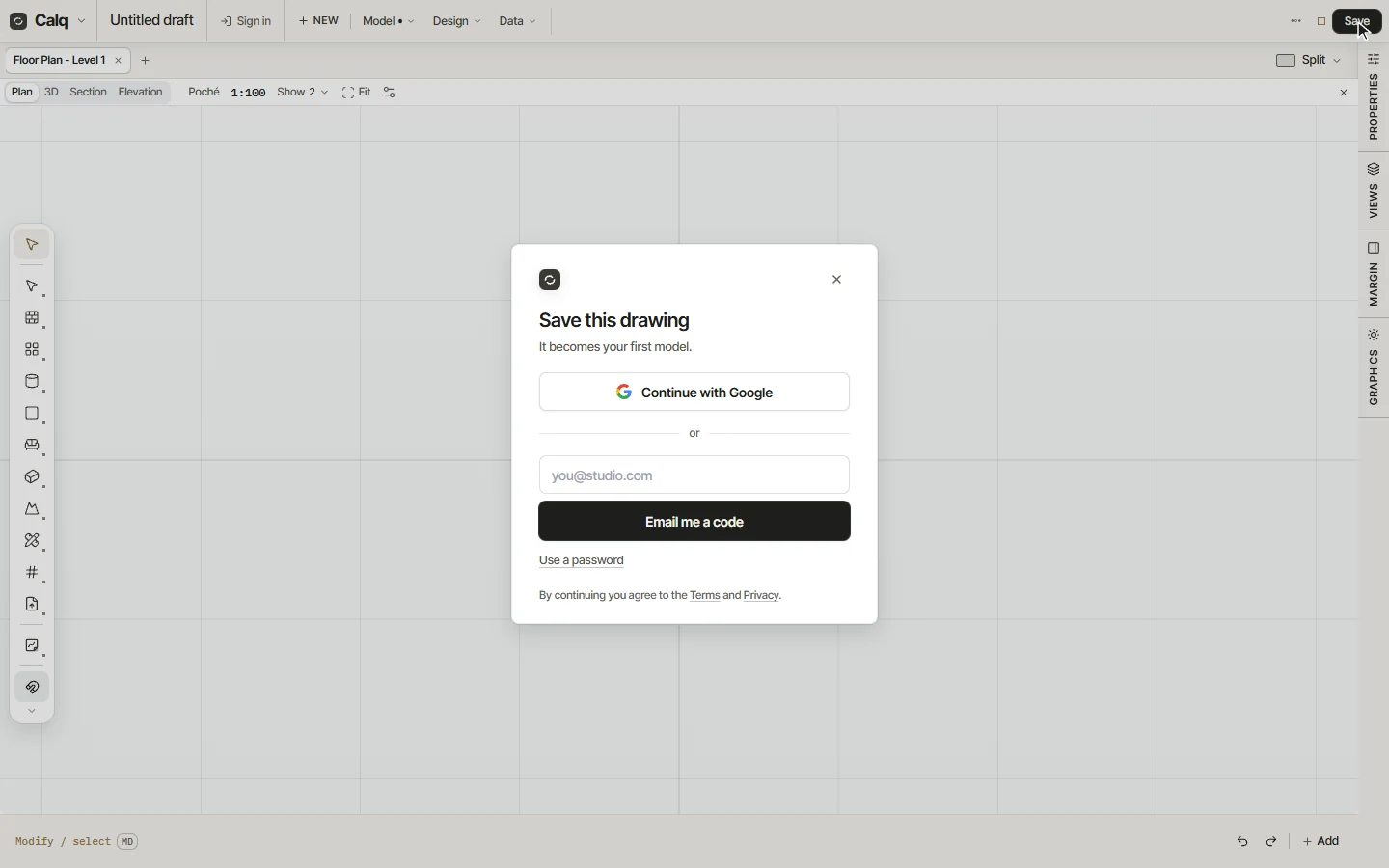
Click Save at the top right. A draft becomes your first model when you sign in: continue with Google, have a code emailed to you, or use a password. What you drew is kept and saved with it.
Once you are signed in, your models are listed under the Calq menu, and a model keeps its history so a change can be undone later.