CalqFrançaisOpen Calq
Learn Calq: a building from A to Z / Part 0 Start here
The board, edge by edge
Where everything lives: the menus, the views as tabs, the tool palette, the right rail and the cursor line.
You will learn the ten parts of the board, open the tool palette and the right rail, and look inside one of the menus on the strip.
01The ten parts of the board
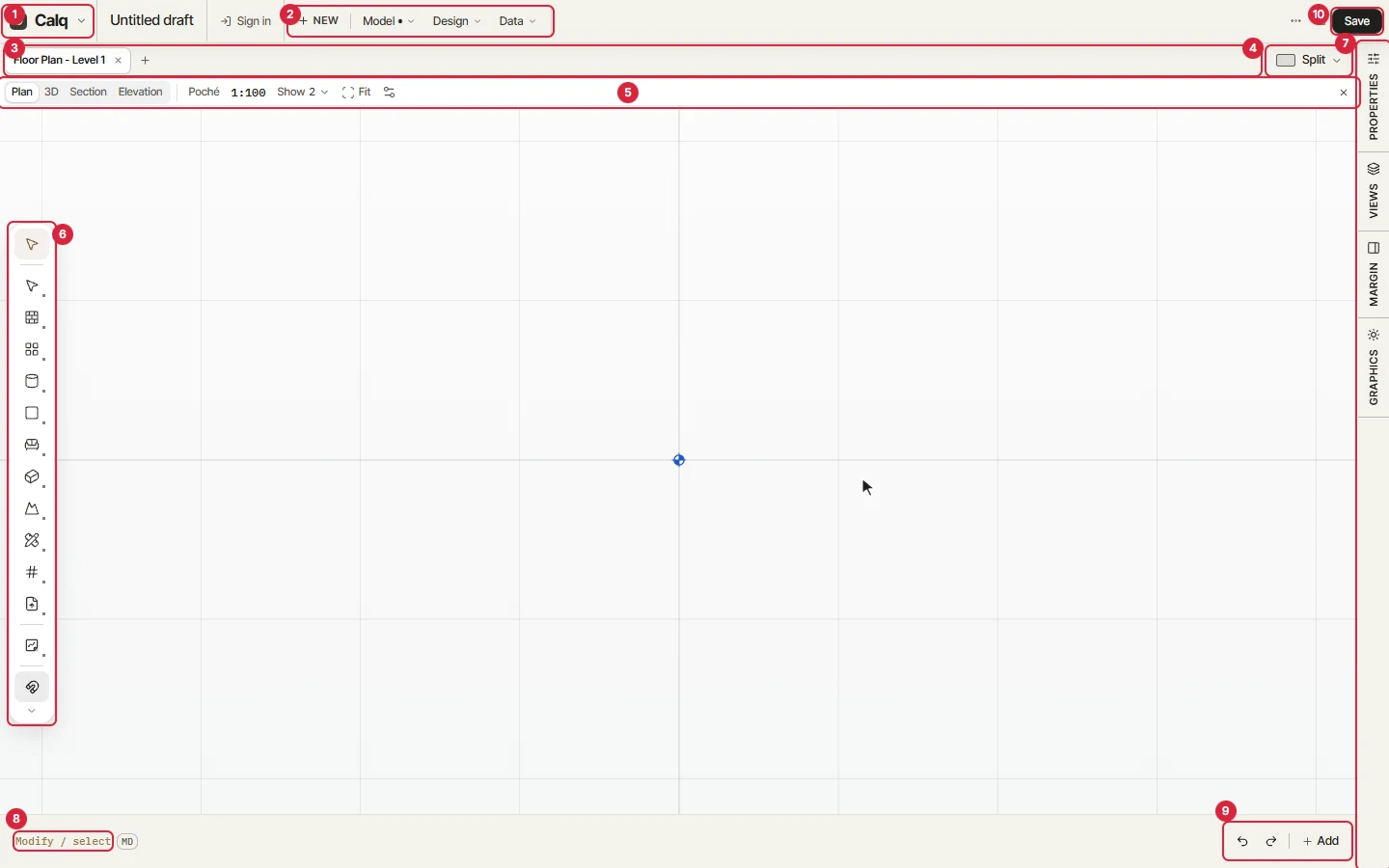
Each edge of the board has one job. The numbers match the picture.
- 1. The Calq menu: your account, the catalogue, the language and the preferences.
- 2. The menus: New starts a studio flow; Model holds what is shown and the imports; Design the design studies; Data the model's data and its standards.
- 3. The views, as tabs. The + finds or makes any view, sheet or storey (Ctrl + K).
- 4. Split: one view, or the board split into views side by side.
- 5. The view strip: what this view is (Plan, 3D, Section, Elevation), its drawing style, its scale, what it shows, Fit and its settings.
- 6. The tool palette: every tool, gathered into toolsets.
- 7. The right rail: Properties, Views, Margin and Graphics.
- 8. The cursor line: the tool in hand and, while you draw, its options.
- 9. Undo, redo and Add (data cards, references, a render on the board).
- 10. Save.
02The tool palette
Each icon of the palette on the left is a toolset, named by what you draw: walls and openings; floors, roofs and stairs; structure and services; rooms and areas; finishes and furniture; mass and form; the site; annotation; datums; bringing files in; and Calque, the tracing paper for marking up. Select sits at the top and Snap at the foot.
Click an icon to open its tools, grouped under small captions. Click a tool to take it; click an empty part of the drawing, or press Esc, to close the toolset.
03The right rail
The tabs on the right edge open the panels that stay beside the drawing:
Click a tab to open its panel and click it again to close it. A panel is widened or narrowed by dragging its inner edge.
- Properties: the view in hand, or what you have selected, and its values to edit.
- Views: the views finder, every view and sheet of the model and the ways to make a new one.
- Margin: the model's elements, levels and types, and the check of every element.
- Graphics: the templates, the lines, the surfaces, the shadows and the sun, for every view.
04The menus on the strip
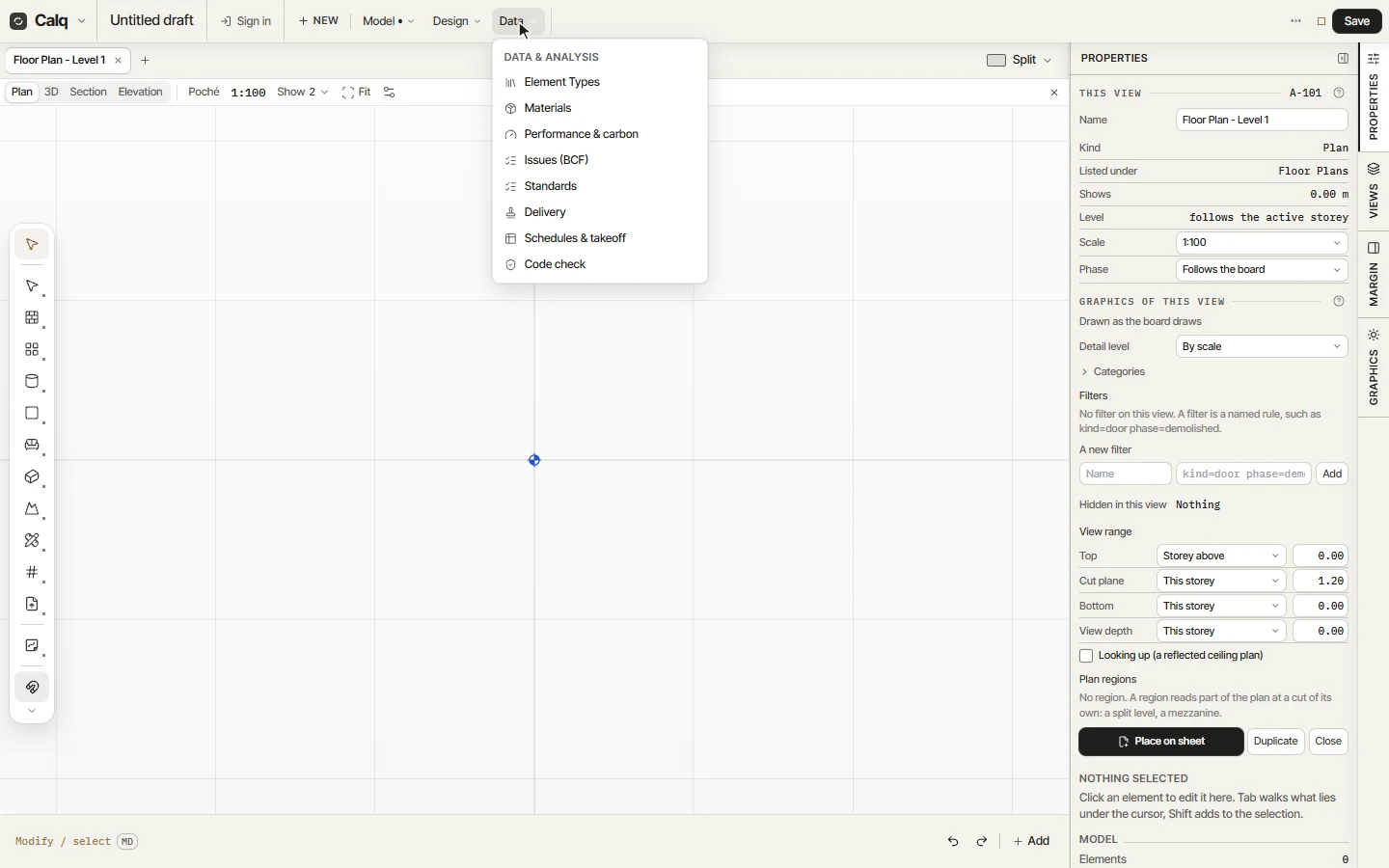
Click Data on the strip. It holds what the model knows beyond its geometry: the element types and the materials, performance and carbon, issues in BCF, the project's standards, the delivery of its information, the schedules and the takeoff, and the code check. Model and Design open the same way.
With nothing selected, the Properties panel speaks for the view in hand: here the plan's name, its storey, its scale, its phase and its view range (where the plan is cut and how deep it looks).