Calq
CalqLearn Calq: a building from A to Z / Part 14 Mastery
The walkthrough film
Draw a camera path round the model, set each point, play it and export it as a video.
You will draw a path of four points round the sample house, read a point's settings, play the walkthrough and open its export.
01Draw a camera path
Open the 3D, then Views on the right rail: the views finder opens. Look for Draw a camera path in the 3D, under Saved Viewpoints, and press Enter. The walkthrough player opens at the foot of the 3D with the Camera path card, adding points.
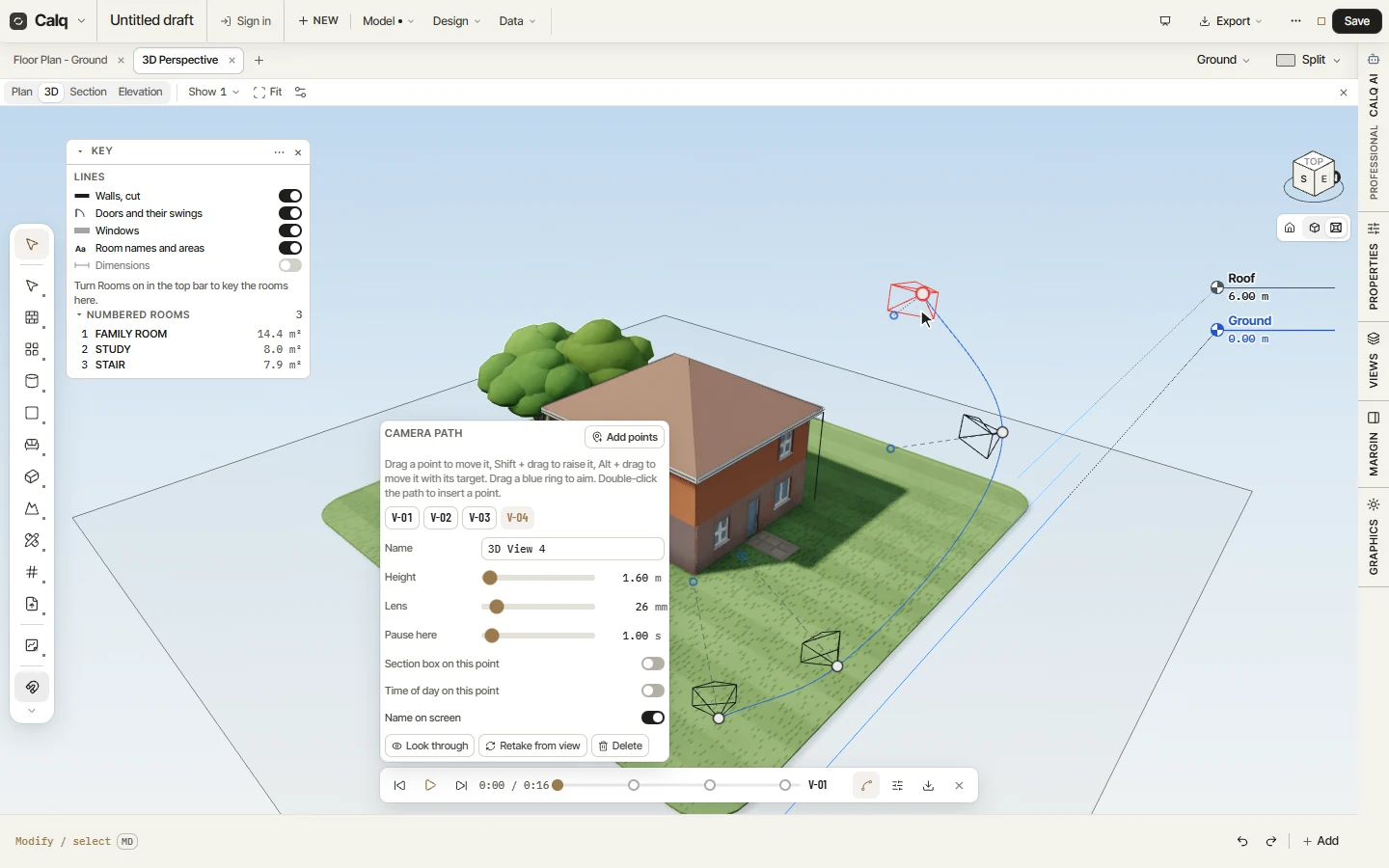
Click on the model: each click is a point 1.6 m above the floor clicked, looking on along the path. Four clicks round the house make the points V-01 to V-04, joined by the path. Esc stops adding.
02Each point
Pick a point (its tab on the card, or the point in the 3D) to set it: its name, its height, its lens, how long the camera pauses there, a section box and a time of day of its own, and whether its name is written on screen. Look through puts you at the point, Retake from view takes it from the camera, Delete removes it.
On the model, drag a point to move it, Shift + drag to raise it and Alt + drag to move it with its target; drag a blue ring to aim, and double-click the path to put a point in it.
03Play it
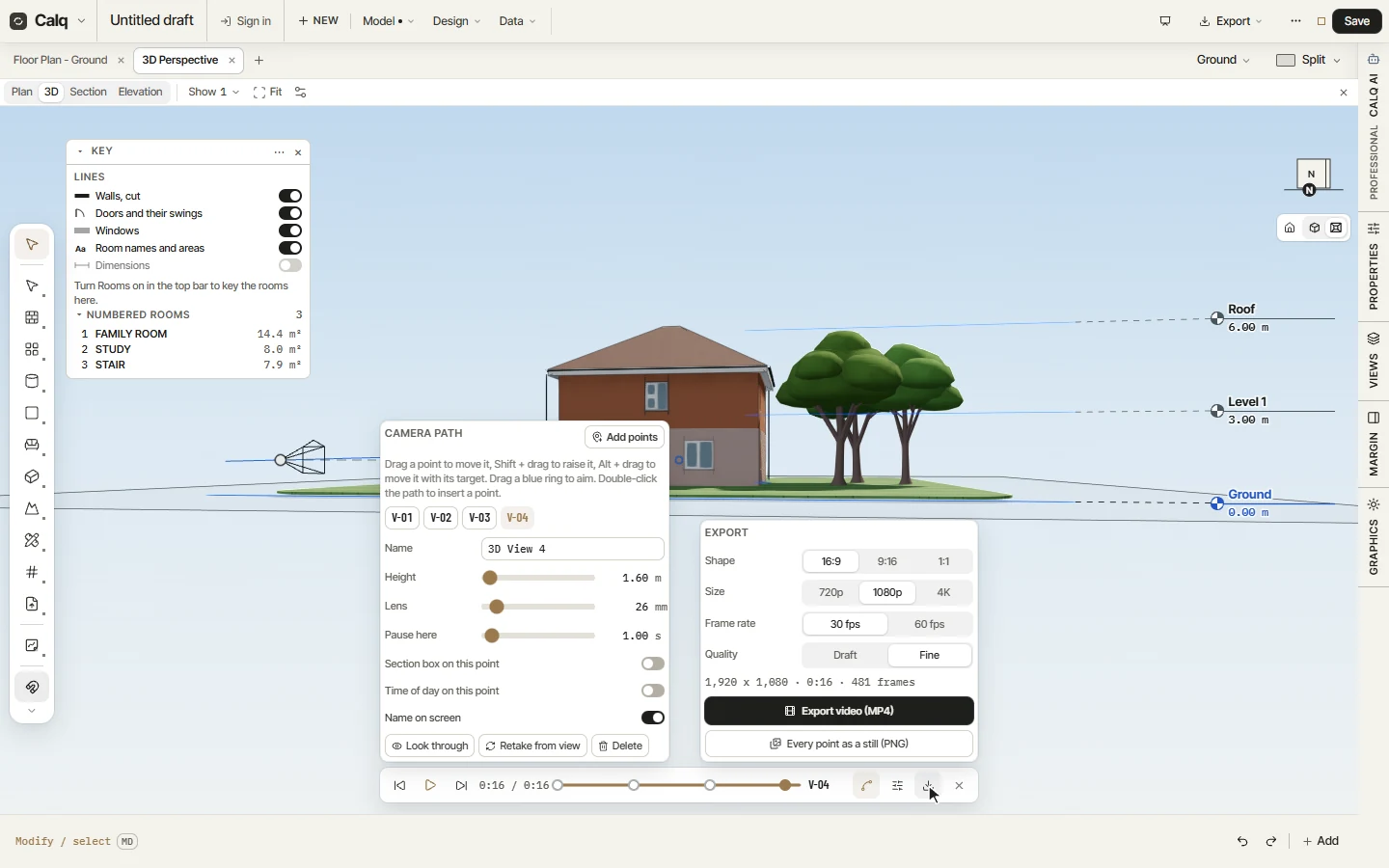
Press Play: the camera travels through the points, each name written on screen as it passes. The clock gives where it is and how long it lasts, here 0:16. Motion, beside the path button, sets how it travels: a curve or straight lines, each move timed or an even speed, a pause at every point, looking at the targets or along the path, back to the first and round again, a fade, a title card.
04Export the film
Export sets the film: its shape (16:9, 9:16 or 1:1), its size (720p, 1080p or 4K), its frame rate and its quality, and says what that makes. Here it is 1,920 x 1,080, 16 seconds, 481 frames. Export video makes the MP4 in this browser, Chrome or Edge writing it frame by frame; Every point as a still saves a PNG of each point.
The points are the model's saved viewpoints: they are listed in the views under Saved Viewpoints and travel to other BIM tools as BCF.