Calq
CalqLearn Calq: a building from A to Z / Part 14 Mastery
Rendering
Open the Live Render, choose its mood, its sun and its lens, and take a picture, a film or a panorama out of it.
You will open the Live Render of the sample house, let it refine, give it a golden light and see what it can save.
01Where the renders are
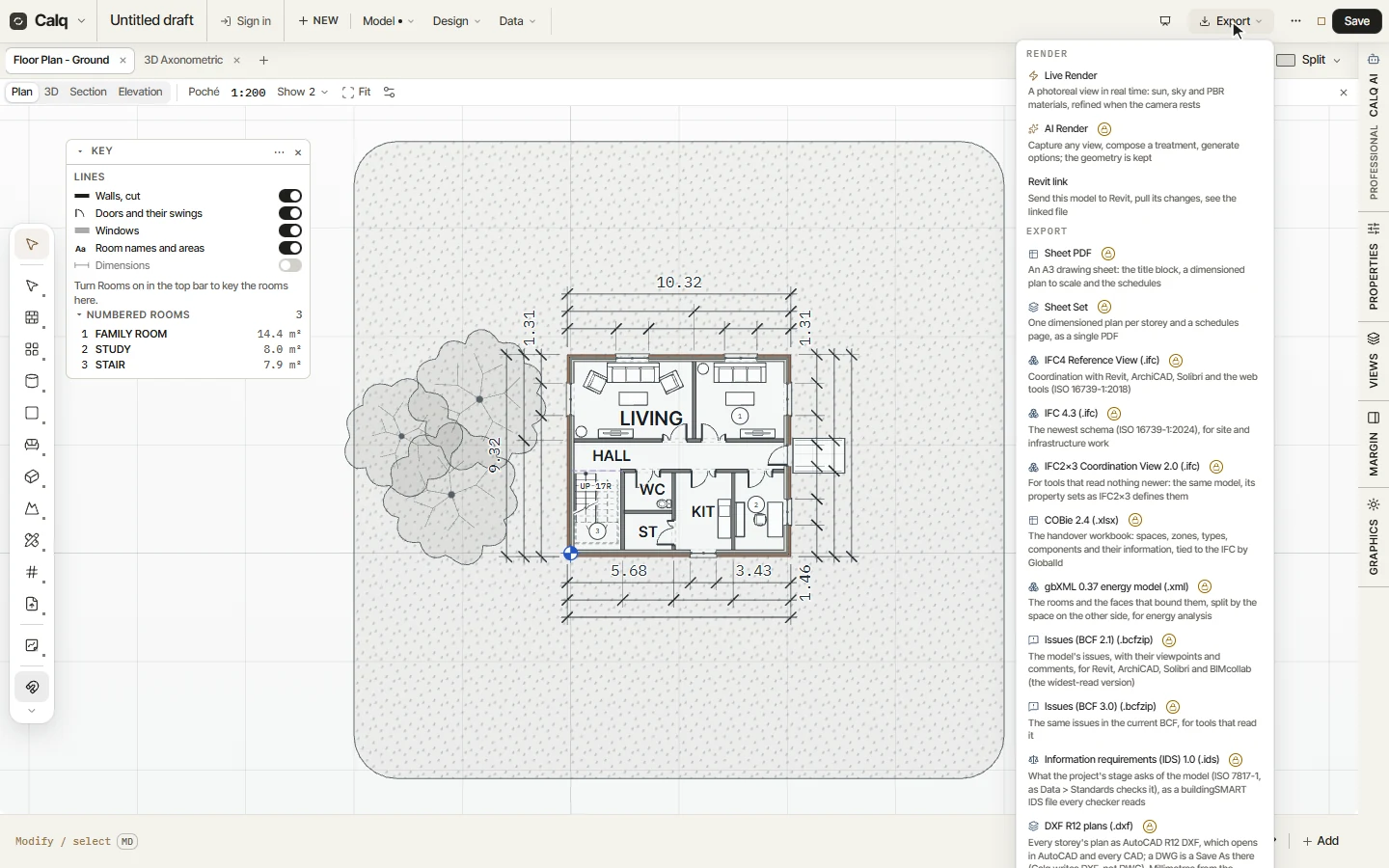
Open Export at the top right. Its first part, Render, holds the Live Render, a realtime view with sun, sky and materials that refines when the camera rests, and the AI Render, which composes a treatment from a view and keeps its geometry. The AI Render is Calq AI's and needs a signed-in account (what each plan holds is on calq.live/pricing). The Revit link and the exports follow.
02The Live Render
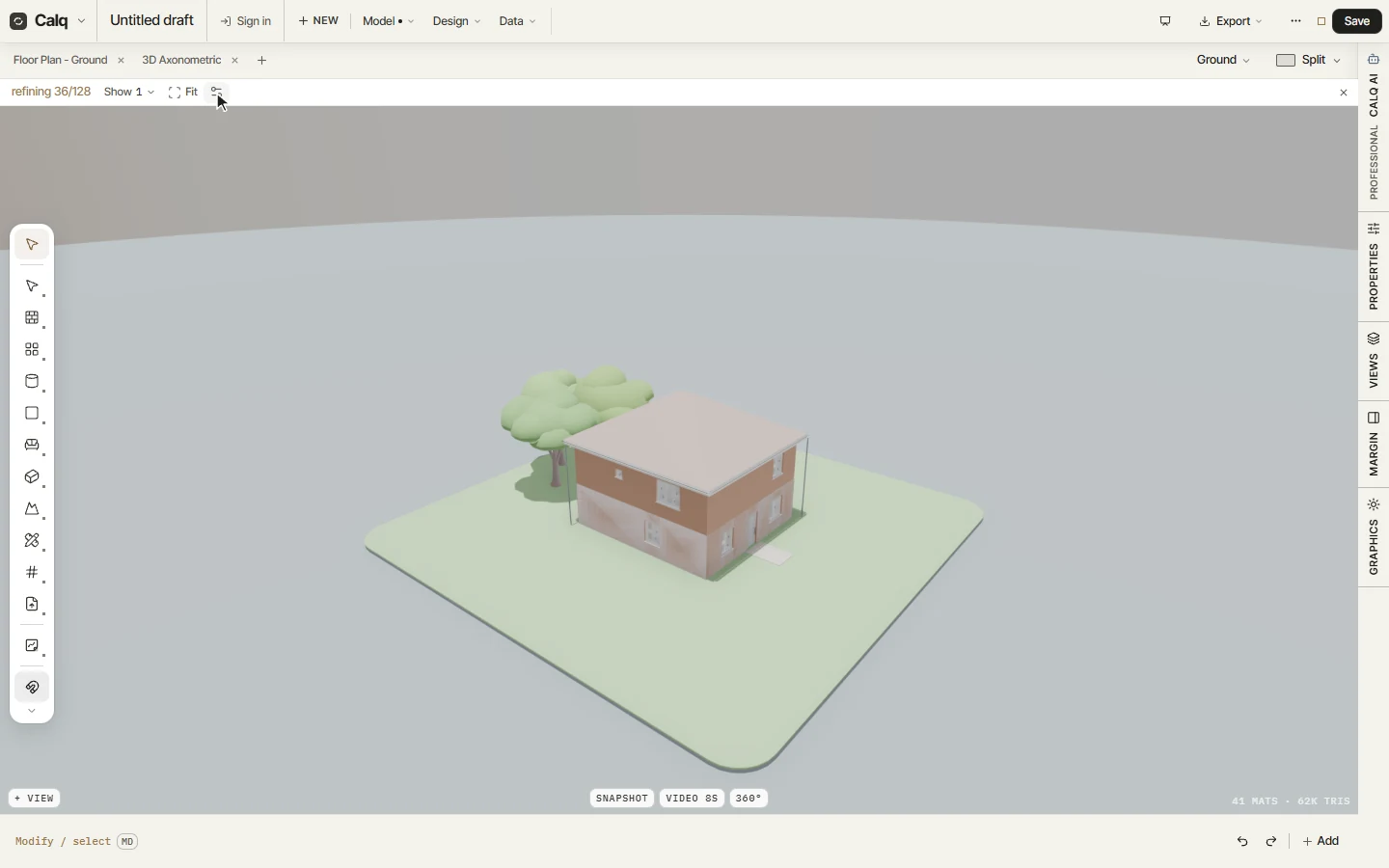
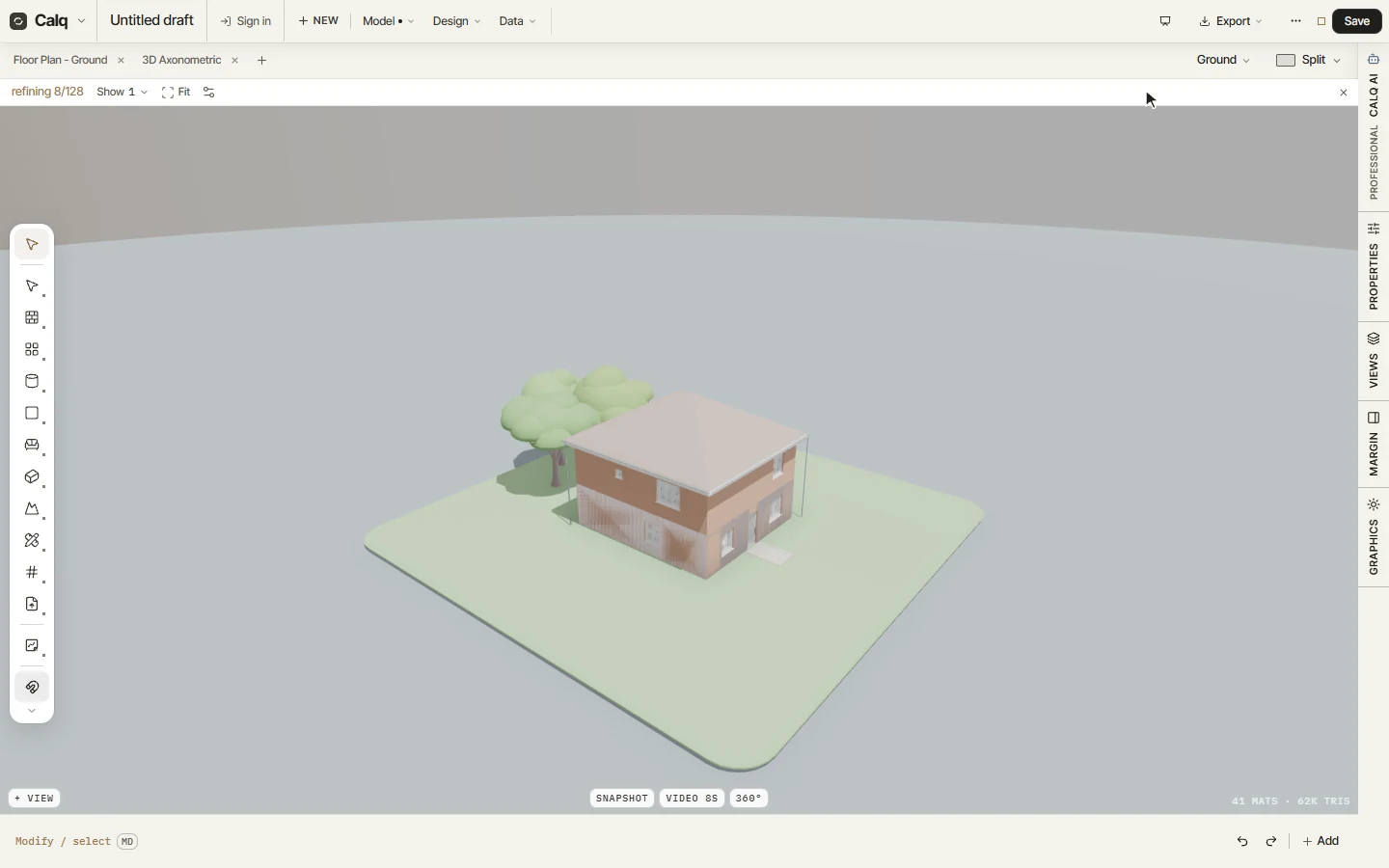
Choose Live Render: it opens as a view of the board, framed on the model. It moves at full speed while you orbit (Shift and the middle button, as in any 3D), and when the camera rests it refines, counting its passes on the strip (refining, out of 128), the edges and the soft shadows growing finer.
03Mood, sun and lens
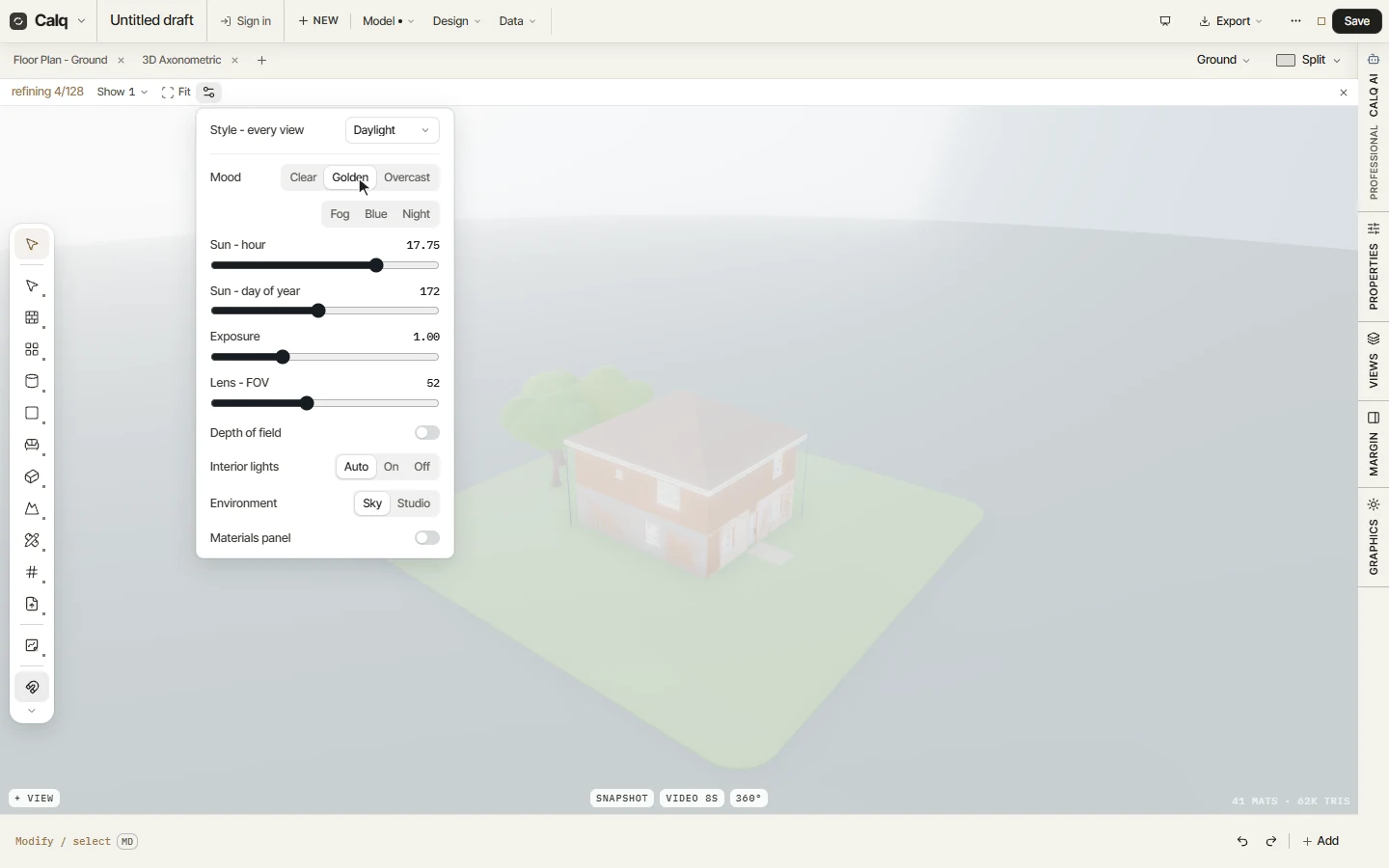
The settings button on its strip opens the render settings: the style, the mood (Clear, Golden, Overcast, Fog, Blue or Night), the sun's hour and day of the year (the model's one sun), the exposure, the lens and depth of field, the interior lights (Auto lights them as the daylight fades), the environment, sky or studio, and the materials panel. Here Golden is chosen: the sun goes down to a quarter to six in the evening (17.75 on its slider) and the light turns low and hazy.
04Take it out
Here the mood is back on Clear. The buttons at the foot save what you see, all in this browser: Snapshot saves the frame as a PNG, Video 8s records an orbit round the model, and 360° saves a panorama from where the camera stands. + View keeps the camera as a view of the render, and Tour flies through the views kept.