CalqFrançaisOpen Calq
Learn Calq: a building from A to Z / Part 6 Rooms and interiors
Your own components
Make a parametric component of your own: parameters with formulas, types and checks, placed like any other piece.
You will start a parametric desk from a template, change a parameter, look at its types and its check, then place it in the flat.
A component made here draws in every view, is written to IFC with its class and its parameters, and goes to Revit as a family.
01Start from a template
Open the Library, its Make tab: Start a parametric component lists templates (a panel, a parametric desk, a round pedestal table, shelving, a base cabinet, a vanity unit, a meeting table with chairs). Press Start from it on Parametric desk: the Component editor opens with the desk's plan and front, and its parameters.
02Change a parameter
Each parameter has its kind (a length, yes or no, a whole number), applies to the type or to each piece, and holds a value or a formula written with the other parameters' names. The desk has seven: Width, Depth and Height among them. Type a new Width, here 2000 mm in place of 1600: the type shown takes it.
03Types and the check
Types holds the sizes the component comes in, each with its own values: the desk comes as 1600 x 800, 1400 x 700 and 1800 x 800. Geometry holds its solids, held to reference planes. Check says whether every type builds (here The family is sound, six solids in each), and Spec is the whole component written out.
04Save and place it
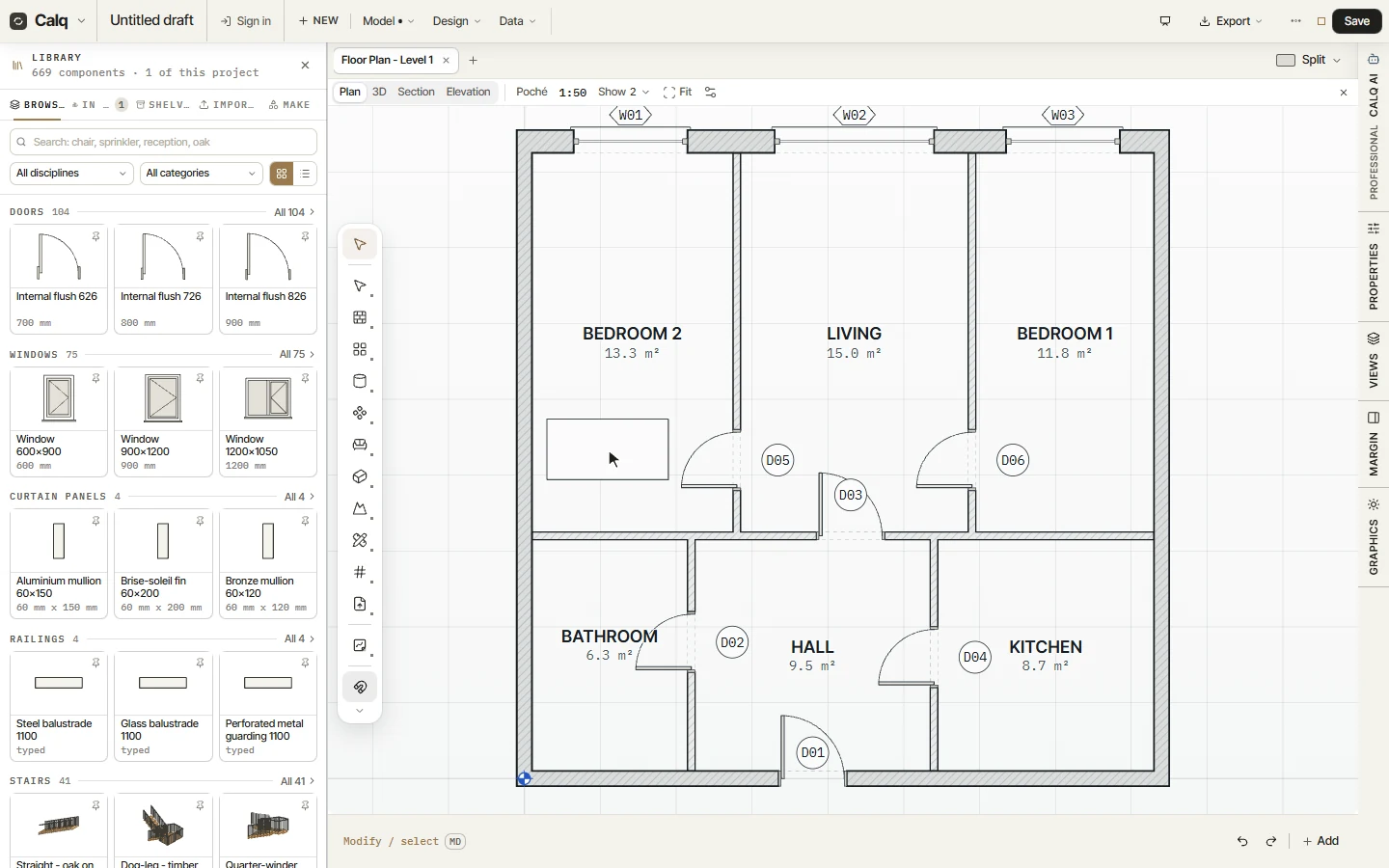
Save keeps it in the model as one component (one undo step) and, as nobody has placed it yet, puts it in your hand: click a room to place it, here the second bedroom. The Library now counts it as a component of this project. Save as new keeps the template as it was and saves your copy beside it.