CalqFrançaisOpen Calq
Learn Calq: a building from A to Z / Part 1 Set up the project
Name the information (ISO 19650)
Give the model its project code, its originator and its volume, so every file, sheet and export is named to ISO 19650; fill the title block and choose the project's standards.
You will open Delivery, write the codes that name the model to ISO 19650-2, see how a model is issued, set the classification and the area standard, and choose the units.
ISO 19650 is the international standard for managing information over the life of a building. Part 2 (the delivery phase) names each container of information by its fields, gives it a status (work in progress, shared, published) and a revision. Calq writes those names for you once the fields are set.
01Open Delivery and write the codes
Open the Data menu on the strip and choose Delivery. Its Naming tab holds three parts:
For this course's building, type ELM as the project, CLQ as the originator and B1 (building 1) as the functional breakdown, pressing Enter after each. The model's name follows as you type: project, originator, volume, level (ZZ when it covers several), type (M3 for a 3D model), role (A for the architect) and number.
- Project language: the language the model's drawings and exports are written in. It belongs to the model, whatever language you work in.
- Information containers (ISO 19650-2): the project code, the originator (your organisation), the functional breakdown (a volume or a system of the project), the discipline. Below them, the model's own name, written from these fields.
- Title block (ISO 7200): the legal owner, the creator and who approved the drawings, printed in every sheet's title block.
02How the model is issued
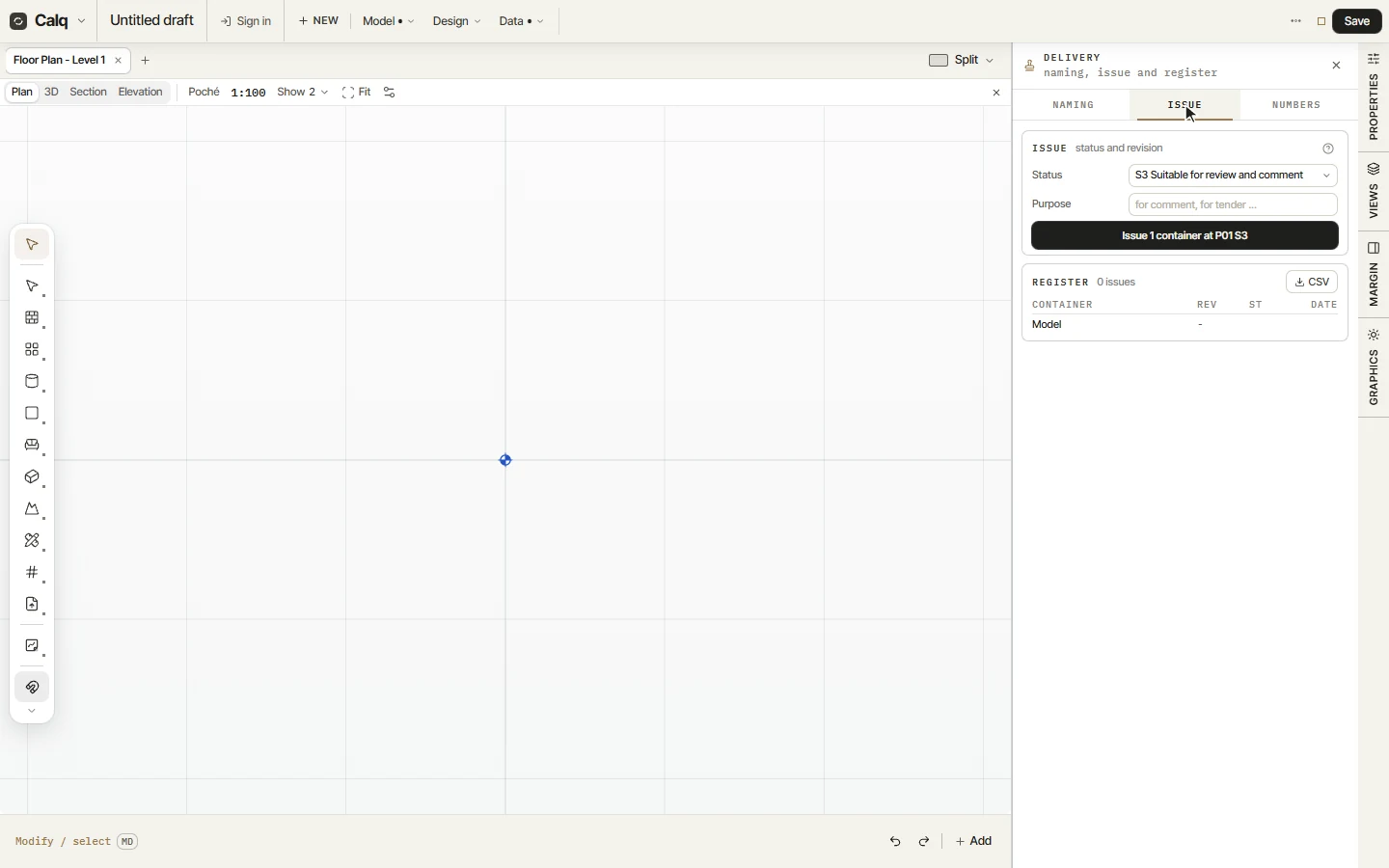
The Issue tab is where the model is issued. Choose its status (S3, suitable for review and comment, is set to start with; S0 is work in progress, S1 to S4 shared for a purpose, A published), write the purpose of the issue, then click Issue: the model takes its revision (P01 for the first preliminary issue, then P02 and on; C01 once contractual) and the issue is written into the register below, with its container, revision, status and date. The register downloads as CSV.
03The project's standards
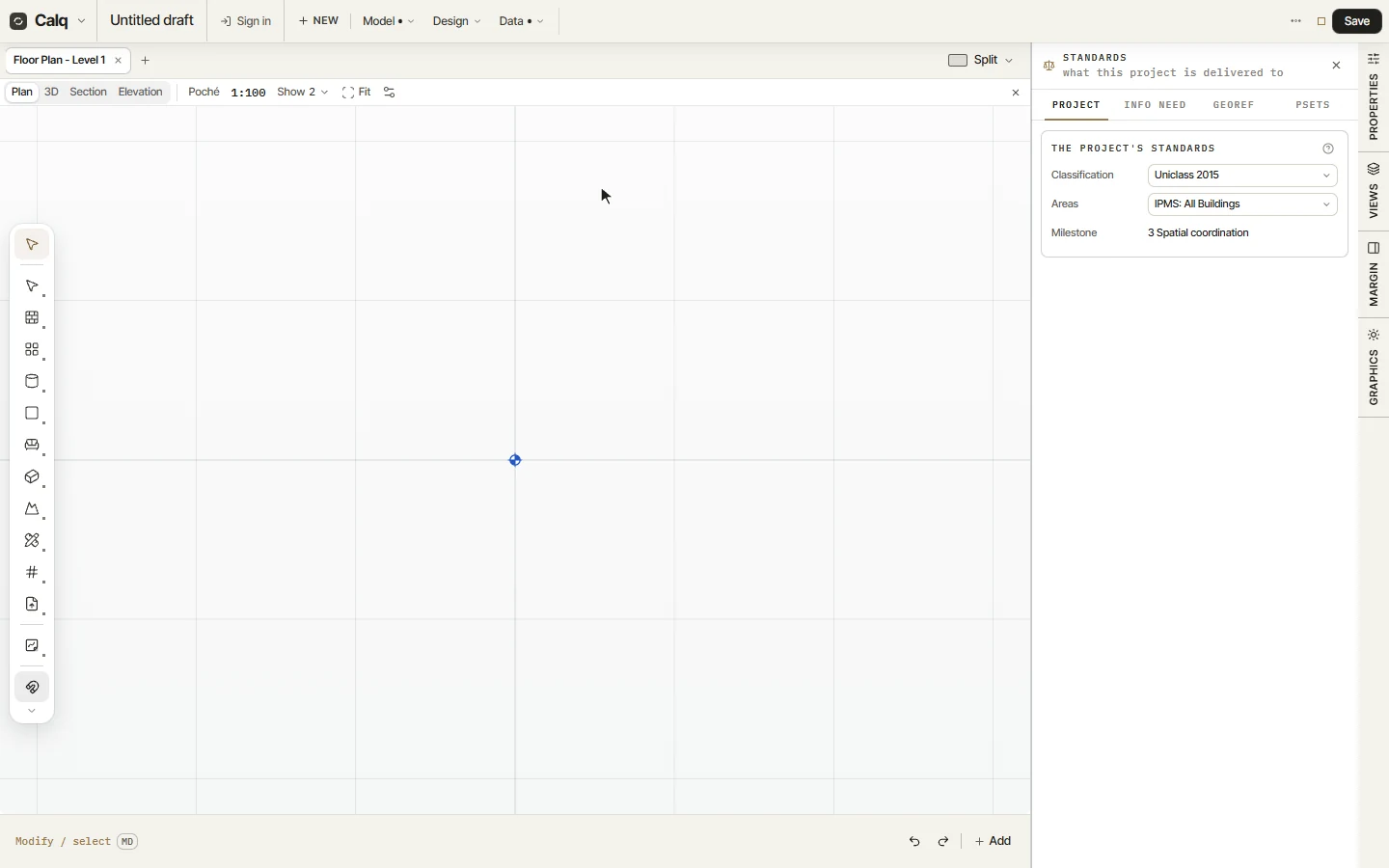
Open the Data menu again and choose Standards. Its Project tab sets what the project is delivered to: the classification (Uniclass 2015), the way areas are measured (IPMS) and the stage the information has reached.
Its other tabs are the information needed from the model, its georeference and the property sets every element carries in its IFC.
04The units
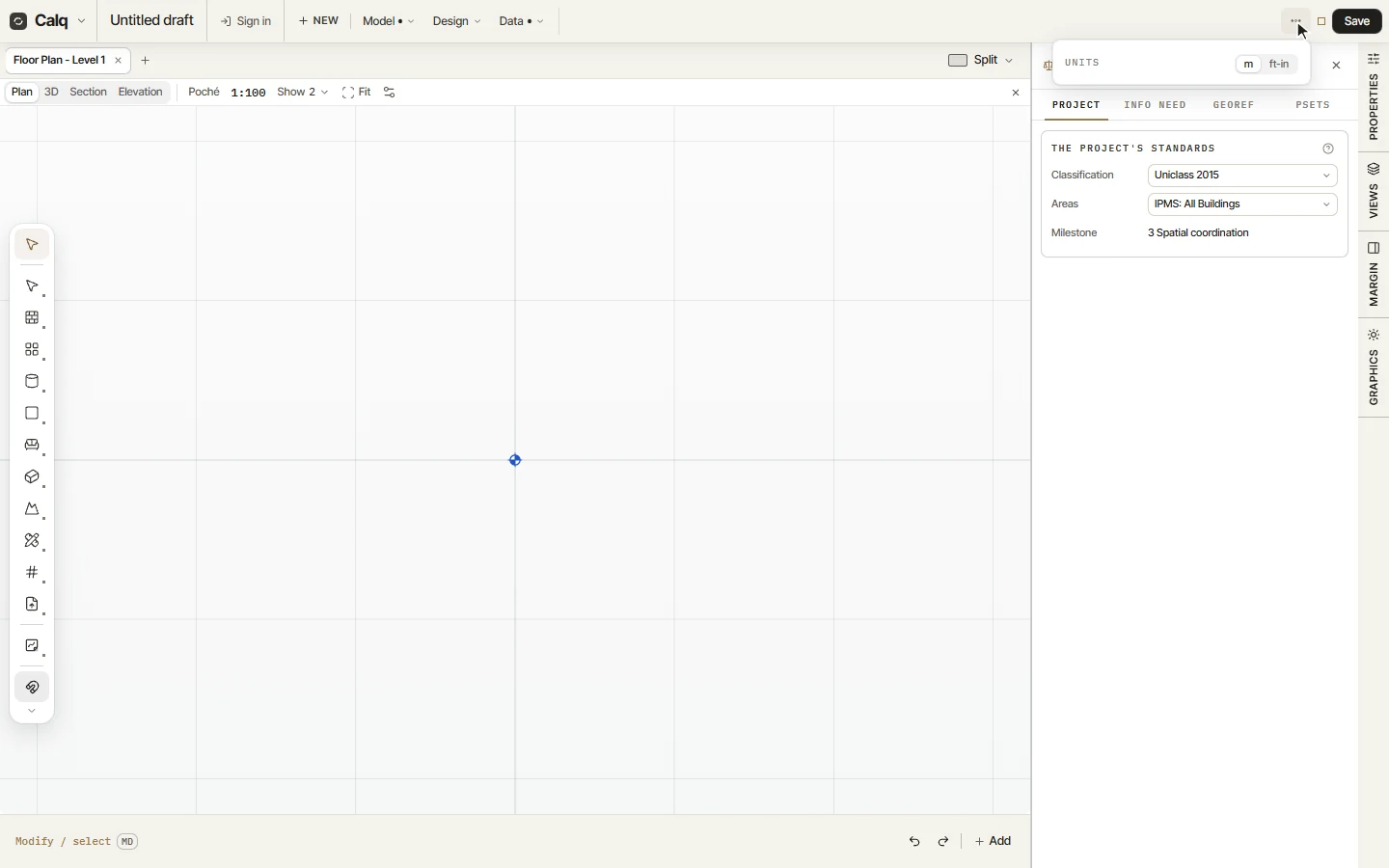
The three dots on the strip, beside Save, hold the units: metres or feet and inches. Everything the model shows and writes follows them; the model itself is held in metres.