CalqFrançaisOpen Calq
Learn Calq: a building from A to Z / Part 0 Start here
Tools, codes and snaps
Take a tool by its two-letter code, draw with the snaps, undo and redo, and find any command.
You will draw four walls with the WA code, undo and redo them, look at the snap settings and open the list of every command.
01Take a tool by its code
Every tool has a two-letter code. With the cursor over the plan, type W then A: the wall tool is in hand and the cursor line at the bottom shows its options: the mode (a chain of walls), the height, the thickness, what its top is attached to, its location line and its type.
Click a point, then the next: a wall is drawn between them and the next wall starts from its end. The figures beside the cursor give the length and the angle as you go, and the snaps catch the ends and the right angles. Close the rectangle on the first point and press Esc to put the tool down.
- WA wall, DR door, WN window, RM room, SB floor
- GR grid line, GS grid setup, LL level, DI dimension
- MD select, the resting state; Esc always brings you back to it
02Undo and redo
Ctrl + Z undoes the last change and Ctrl + Shift + Z redoes it. The arrows at the bottom right do the same. Here two walls are undone and then redone.
03The snaps
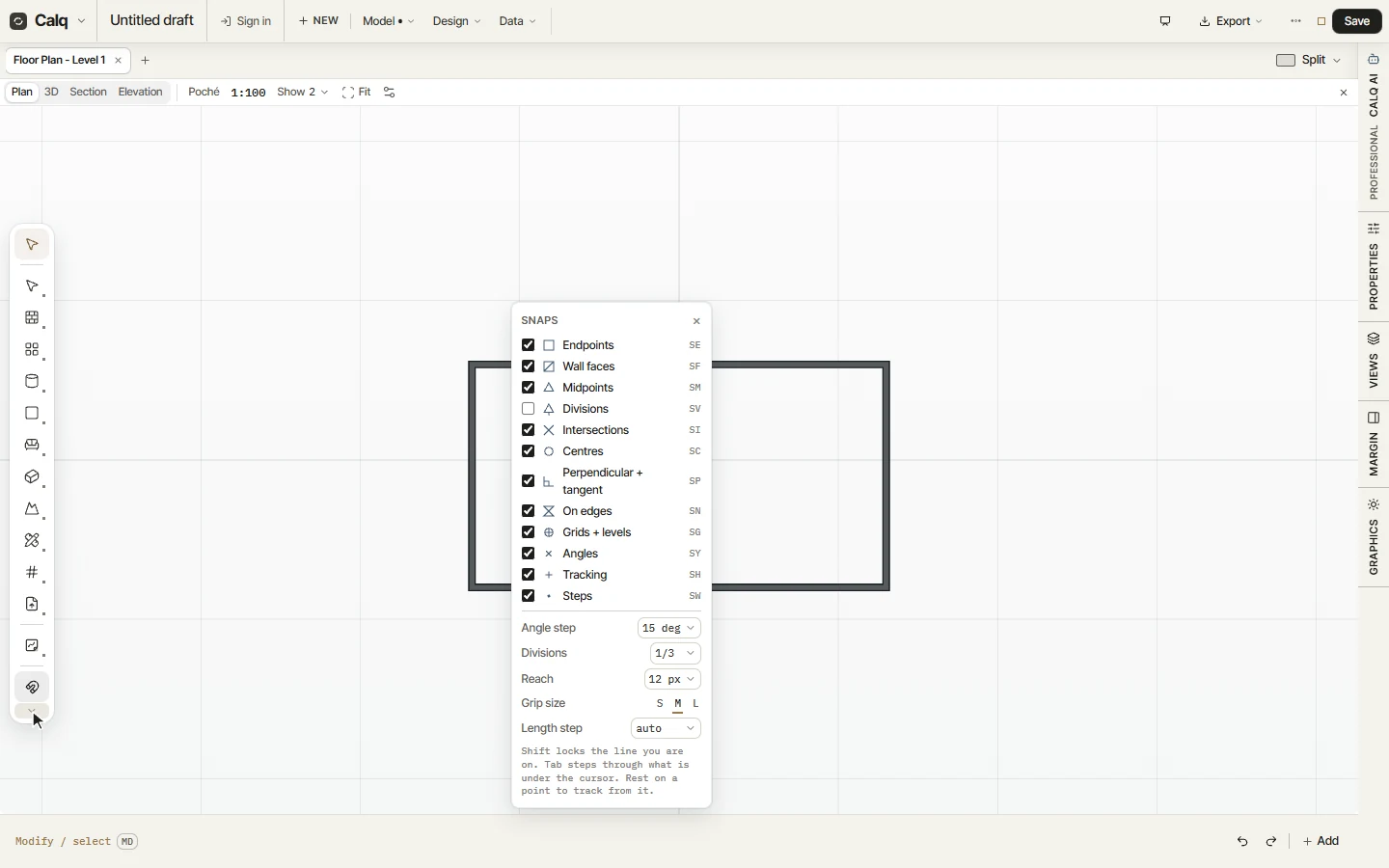
Snap, at the foot of the tool palette, turns snapping on and off. The small arrow under it opens the snap settings: each kind of snap with its own two-letter code (endpoints, wall faces, midpoints, divisions, intersections, centres, perpendicular and tangent, on edges, grids and levels, angles, tracking, steps), then the angle step, the divisions of a line, how far the snaps reach, the size of the grips and the length step.
While you draw, Shift locks the line to its angle, Tab steps through what is under the cursor, and resting on a point tracks a line from it.
04Every command and its code
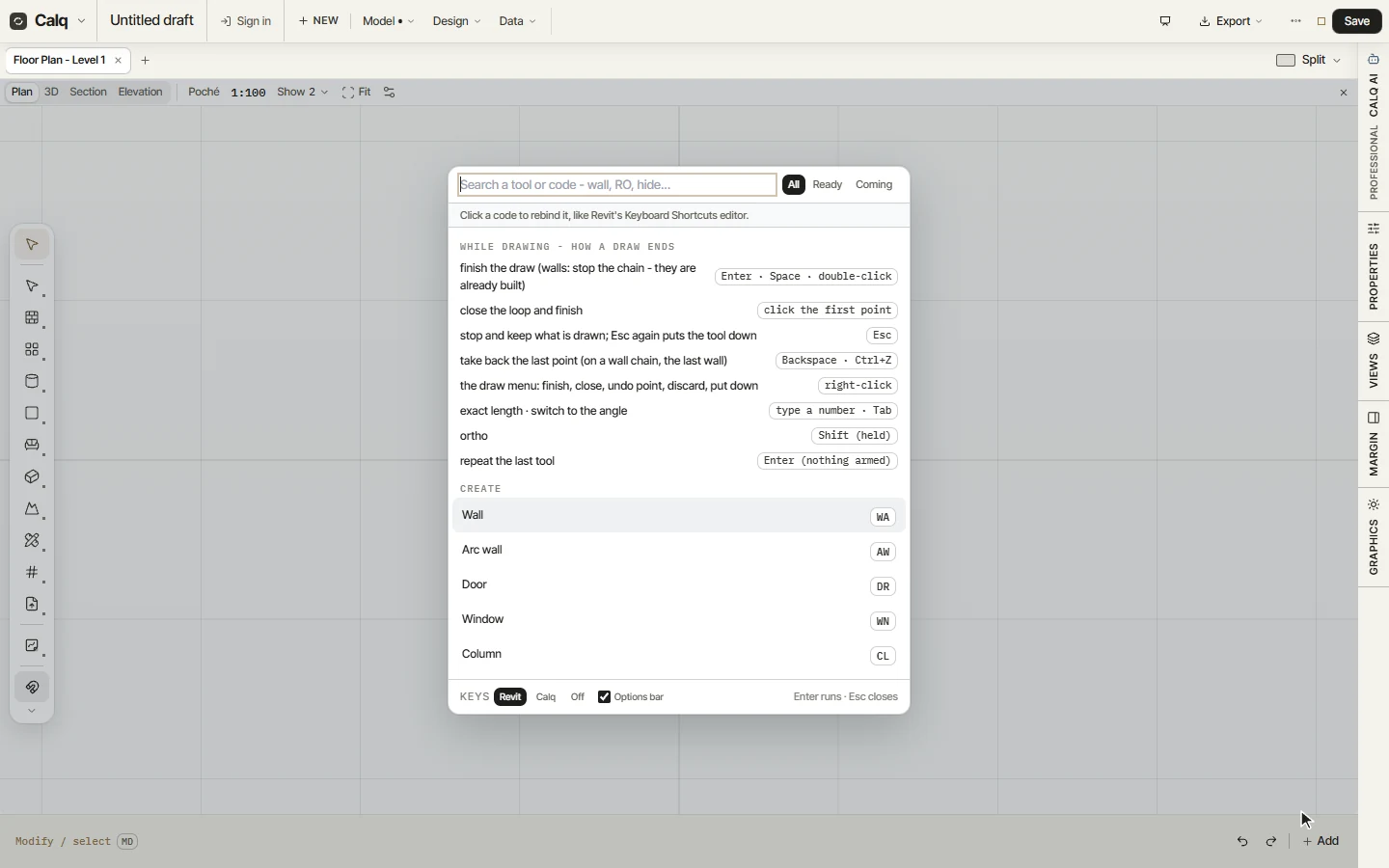
Press ? (Shift + /) over the board: the list of every command opens, with its code. Type to search, then press Enter to run what you found. Click a code to change it to one you prefer.
Its first part says how a drawing ends: Enter, Space or a double-click finishes it, a click on the first point closes the loop, Esc keeps what is drawn (and a second Esc puts the tool down), Backspace takes back the last point, a number typed while drawing gives an exact length, and Shift held draws square.