Calq
CalqLearn Calq: a building from A to Z / Part 14 Mastery
Preferences
Set the language, the look, how the tools stand on the board, the scale reading, the snaps, the sun on plans and the keyboard, once for every model.
You will open the preferences, move the tools from the pill to the rail and back, and read the drawing and keyboard settings.
01Open the preferences
Open the Calq menu at the top left and choose Preferences, or press Ctrl + , anywhere on the board. They are yours, on every model, kept in this browser, in four parts: General, Board, Drawing and Keyboard.
General holds the language of the interface (English, Français or العربية) and the look of the chrome (Mylar or Stone). A model keeps its own language for what it prints and exports: the language here changes only the words you read.
02How the tools stand
Board, Tools: three ways to hold the drawing tools. The pill is a floating capsule on the edge of the drawing, each toolset opening a shelf of named tools. The rail is a slim docked rail, each toolset sliding out a list with its codes, pinned to stay open. The next move is a bar at the foot of the view with the tools that fit the view and the selection, and All tools for the rest.
Here the rail is chosen and its Walls and openings list opened, then the pill is chosen again. Under Tools, Scale reading on the drawing shows the scale and the zoom while you zoom, or always.
03Drawing
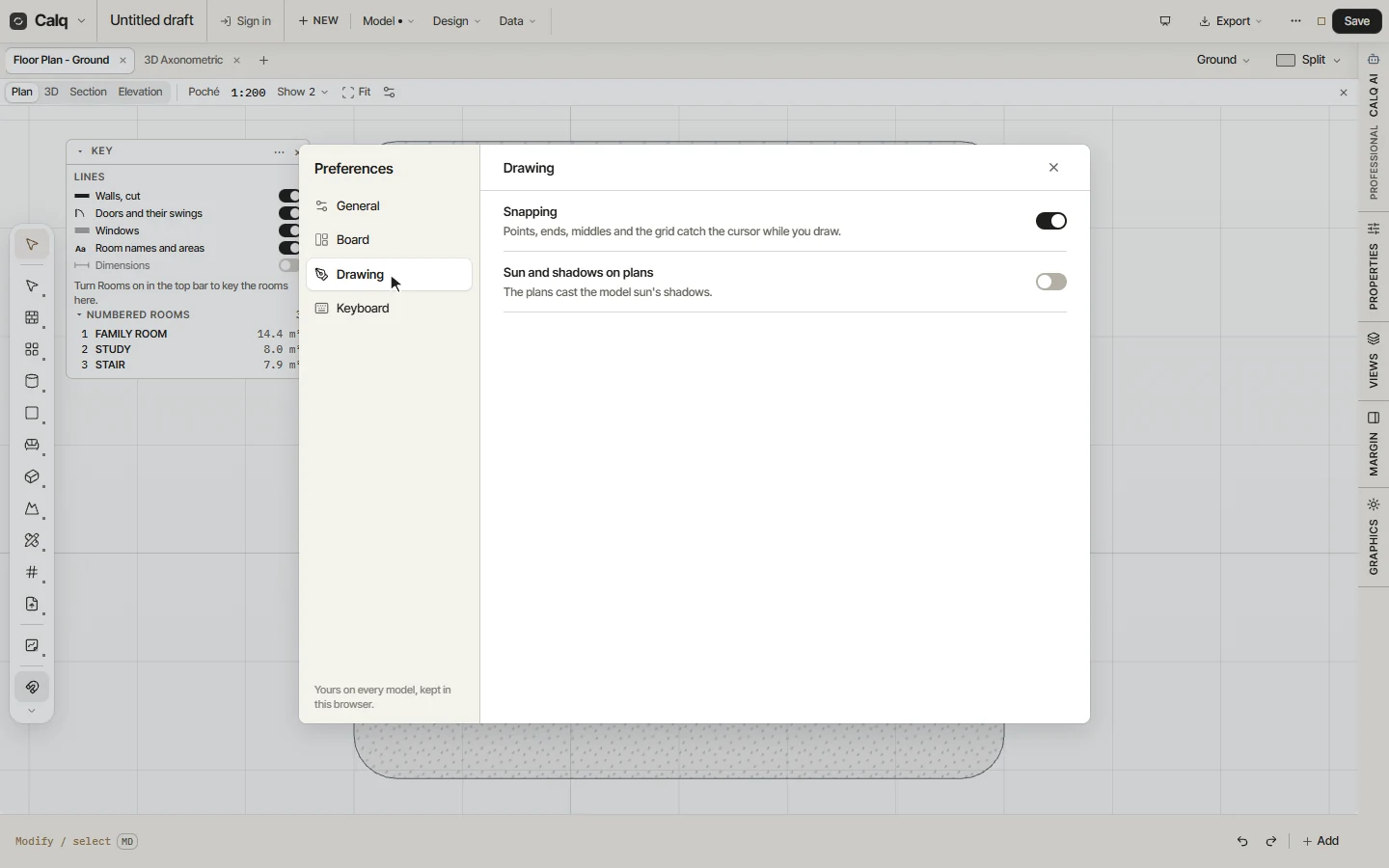
Drawing holds Snapping, the same switch as Snap at the foot of the tool palette, and Sun and shadows on plans: the plans cast the shadows of the model's sun, the subject of the next lesson.
04Keyboard
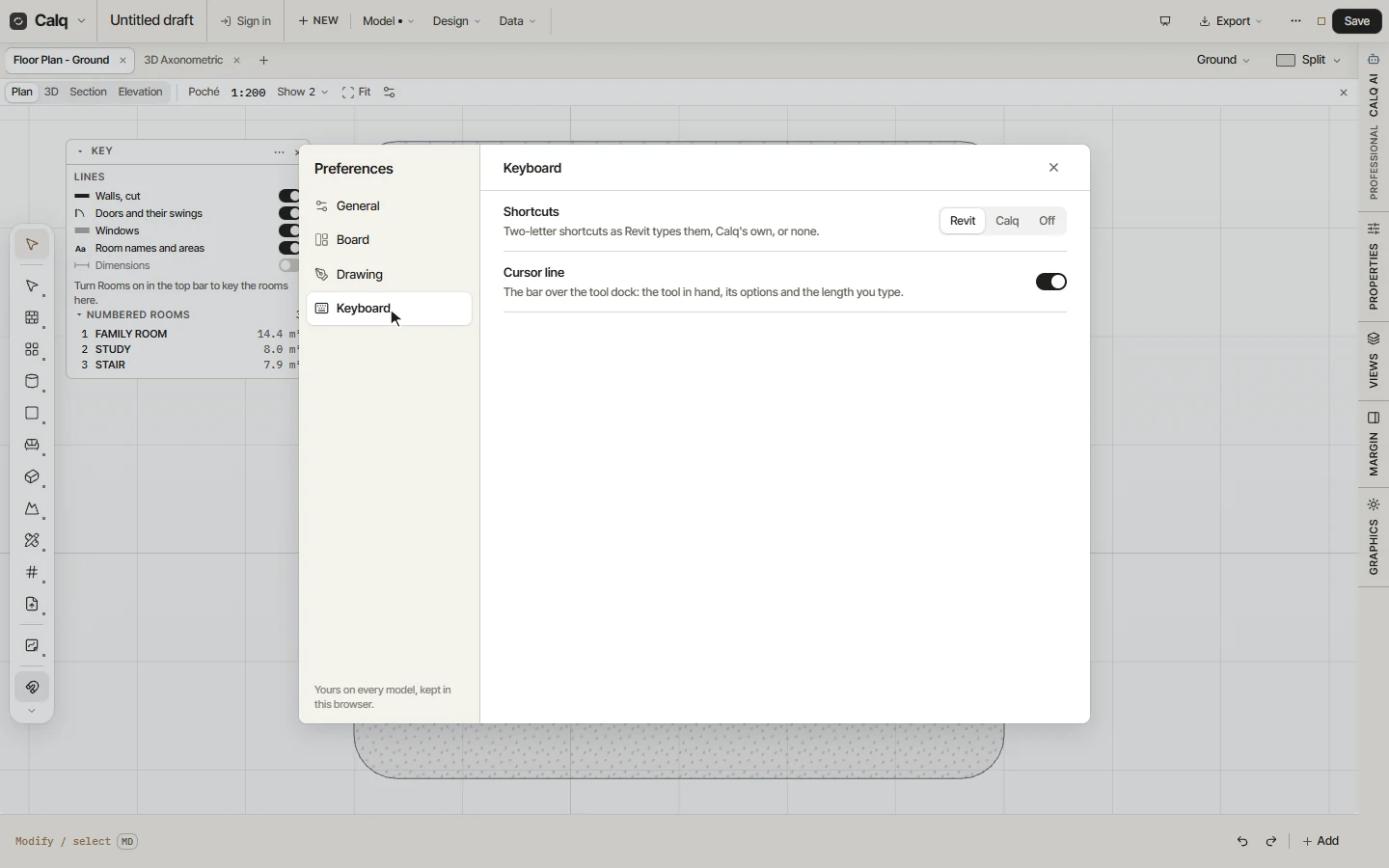
Shortcuts chooses the two-letter codes: Revit, as Revit types them; Calq, Calq's own; or Off, no codes at all. Cursor line shows or hides the bar of the tool in hand along the foot of the board. The same choices stand at the foot of the commands list, as Keys and Options bar.