CalqFrançaisOpen Calq
Learn Calq: a building from A to Z / Part 4 Massing
Shape a mass
Step a mass back as it rises, round its corners, taper it, and take any of it back with one undo.
You will try three shapes on a block of flats six storeys high, each in one click from its properties.
01Step back
Select a mass and open Properties, Full. Under Shape, Step back takes two figures: the number of tiers and how far each is set in, in metres (3 and 3 here). Press Apply and the mass becomes a stepped tower, its storeys shared between the tiers.
02Round corners
Press Ctrl + Z to take the step back away, select the mass again and press Round beside Round corners: its upright corners take the radius given (3 m).
Hollow, with a wall depth, punches a courtyard and leaves a perimeter block; Rotate turns the mass 15 degrees a press.
03Taper
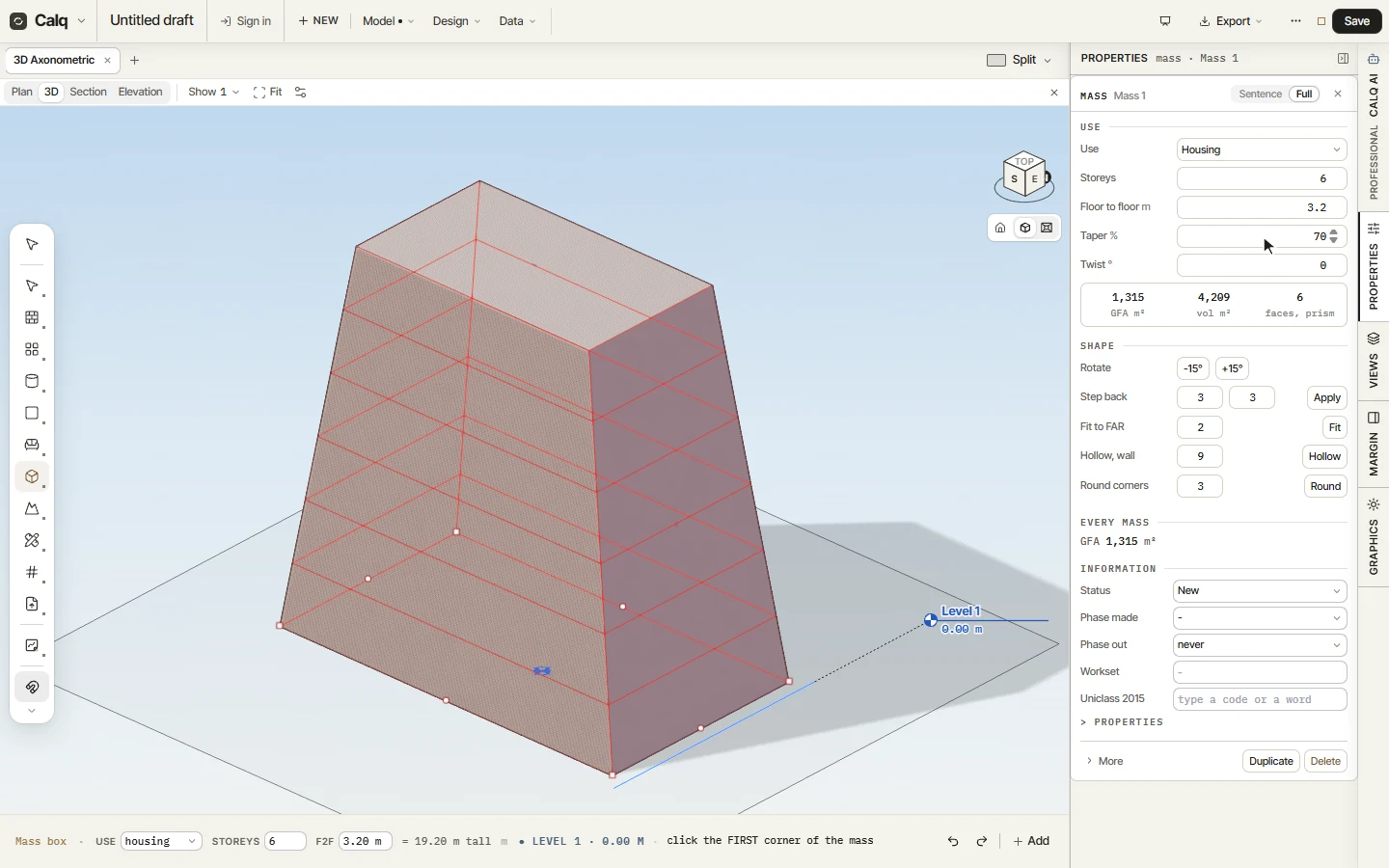
Undo again and set Taper to 70%: the top of the mass is 70% of its foot, the faces drawn straight up the storeys. Twist turns each storey a little further than the one below.
04Many ways, one undo
Every shape is one step: Ctrl + Z takes it back and Ctrl + Shift + Z puts it again, so a mass can be tried several ways in a minute. The Mass toolset holds the rest of the shaping tools: Cut, Split and Subtract, Union and Intersect for two masses, Follow me along a path, and Shape for curves, lofts and sweeps.