CalqFrançaisOpen Calq
Learn Calq: a building from A to Z / Part 4 Massing
The brush
Paint masses along a stroke: the brush as deep as a building, its use and its storeys loaded, its corners mitred, and Ctrl to carve.
You will paint an L-shaped block of flats in one stroke, carve a passage through it and look at it in 3D.
01Paint a mass
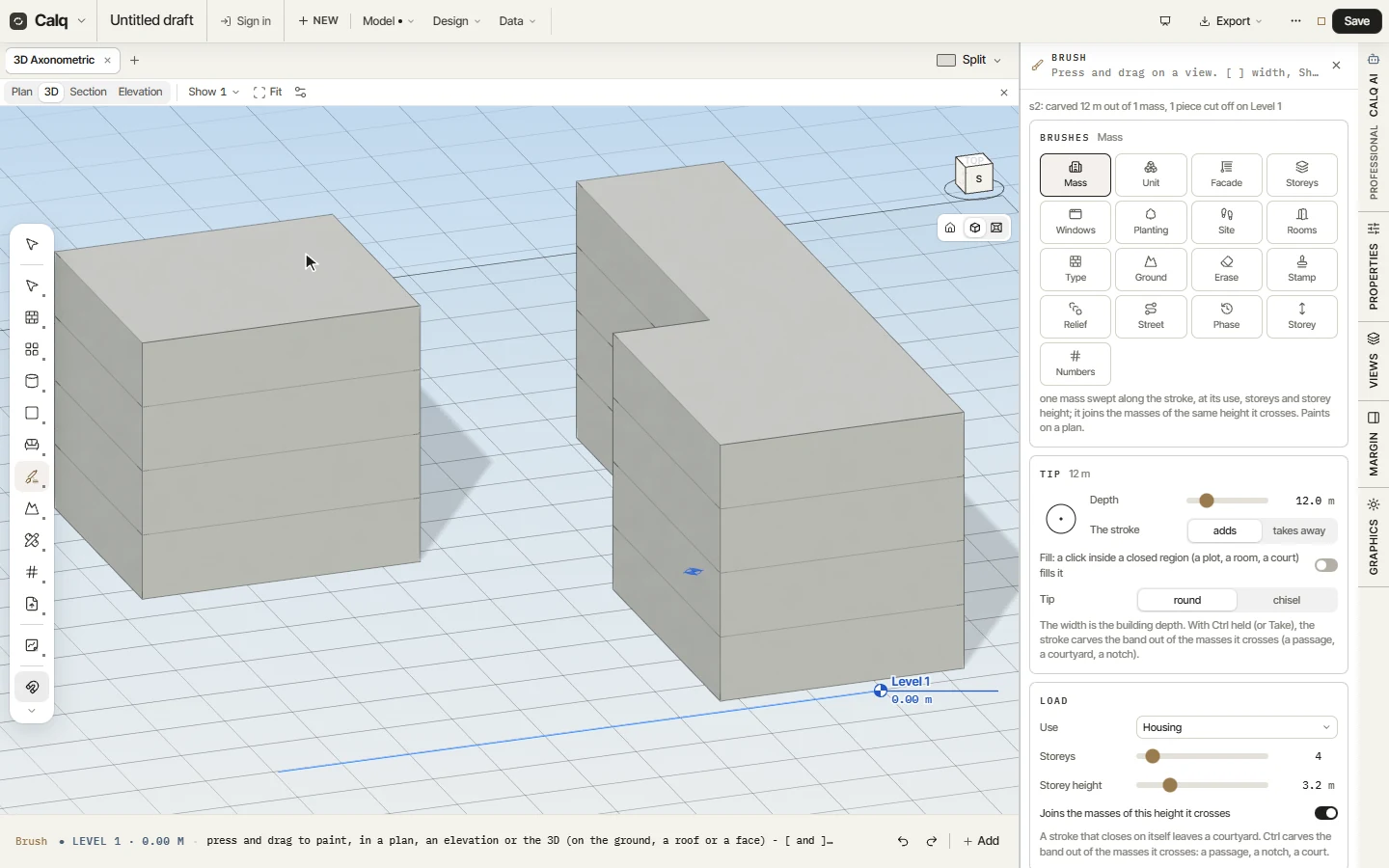
Choose Brush in the Mass toolset: the Brush drawer opens with the Mass brush loaded, 12 m deep (the depth of the building) and four storeys of housing. Press on the plan and drag: the mass follows the stroke. Here the stroke turns a corner, and the two legs meet in one mitred corner.
The stroke is cleaned as you go: its legs are kept to steps of 15 degrees and short jogs are merged. [ and ] change the depth while you paint, and Shift holds a leg straight.
02Carve with Ctrl
Hold Ctrl and paint across the mass: the stroke takes away instead of adding and carves its band out of the masses it crosses, here a passage through the block. A stroke that closes on itself leaves a courtyard.
03See it in 3D
Click 3D and Fit: the painted masses are masses like any other, with their use and their storeys, ready for Push/Pull, Options or a facade. Every stroke is kept as data, to be picked up, taken out or painted again.
04The other brushes
The drawer holds a brush for each job: Mass, Unit (your own flat, copy after copy), Facade, Storeys, Windows, Planting, Site, Rooms, Type, Ground, Erase, Stamp, Relief, Street, Phase, Storey and Numbers. Each has its tip (its depth, whether it adds or takes away, round or chisel) and its load (here the use, the storeys and their height).