 CalqFrançaisOpen Calq
Learn Calq: a building from A to Z / Part 1 Set up the project
The structural grid
Lay the grid the building is set out on, add a grid line by hand and dimension every bay in one click.
You will lay the course's grid, four bays of 6 m by two bays of 7.5 m, add a line, and dimension the grid.
01Lay the grid
Open the Datums toolset on the tool palette and choose Grid setup (or type GS). For the columns (the vertical lines, across X), type 4 bays at 6 m; for the rows (the horizontal lines, up Y), 2 bays at 7.5 m. The line under the fields says what will be laid; click Lay grid. The grid is laid from the project origin up and to the right: roll the wheel to zoom out round it.
Columns are numbered 1, 2, 3 and rows lettered A, B, C. Tick "letters on columns" for the other way round.
02The grid on the plan
Each grid line ends in its bubble. The grid is a datum of the whole model: it is drawn on every plan and cut by every section, and it is written to the IFC as the building's IfcGrid.
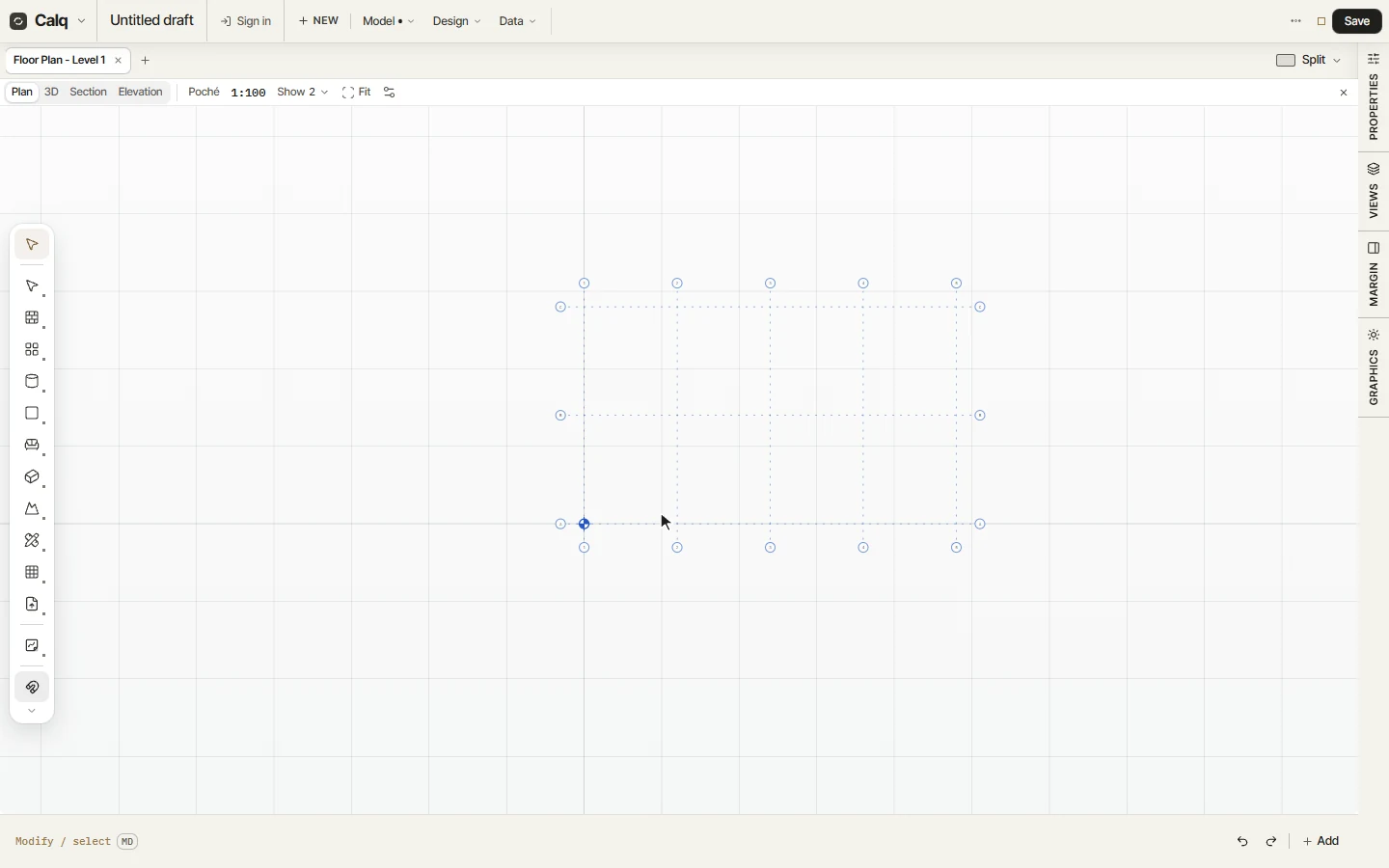
03Add a grid line by hand
Type GR (or choose Grid line in Datums), click where the line starts and where it ends. It takes the next label. Curved draws an arc of grid and Radial lines from a centre; Ref line draws a reference plane to set out from.
04Dimension the grid
Choose Dim grid in Datums: the grid is dimensioned in one click, a string of its bays along the columns and another along the rows, the line drawn by hand included. Grid edit, in the same toolset, renames and moves the lines.