 CalqFrançaisOpen Calq
Learn Calq: a building from A to Z / Part 5 Building elements
Walls
Draw walls of a real build-up, as a rectangle or point by point, read what a wall carries and see it in 3D.
You will draw the shop storey's outer walls as a cavity wall 4.5 m high, a block partition across it, and read what a wall carries.
A wall type is a real build-up of layers (here brick, an insulated cavity and block), exported to IFC as an IfcWall with its material layers and its Uniclass 2015 code.
01Walls as a rectangle
Open the Walls toolset and choose Wall rect. Before you click, set the cursor line: the type (here Cavity wall 365, brick, an insulated cavity and block) and the height H (4.5 m, the tall storey of a shop). The thickness follows the type. Then click two opposite corners: four walls stand, joined at the corners.
The cursor line also sets what the wall's top is attached to and which line of the wall you draw on: its centreline or either face.
02A wall by its points
Choose Wall (WA) to draw walls point by point, each wall starting where the last one ended. Here one partition of Interior block 100 runs across the shop between the outer walls and joins them where it meets them. Esc keeps what is drawn; the arrow at the top of the palette puts the tool down.
Arc wall draws a curved wall, and Curtain a glazed one (the next lesson).
03What a wall carries
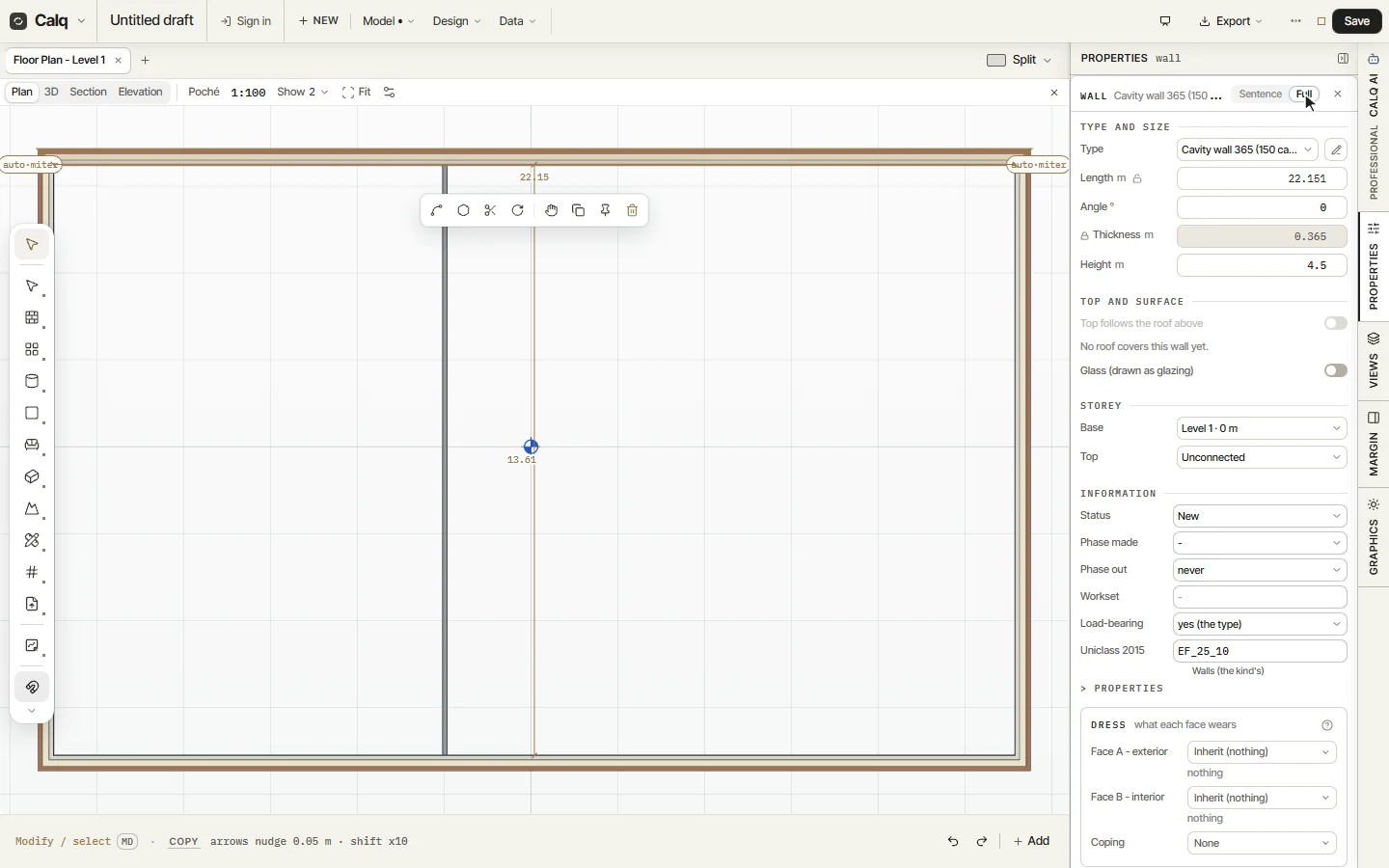
Select a wall and open Properties, Full. A wall carries its type, its length, angle, thickness and height, whether its top follows the roof above, its base and top storeys, its status and phases, whether it is load-bearing, its Uniclass 2015 code and what each of its faces wears.
Change the type here and the wall takes its new build-up; change the height or the top and it follows.
04The walls in 3D
Click 3D on the view strip, turn round with Shift and the middle button, and press Fit: the walls stand with their faces drawn in their materials.