 Calq
CalqLearn Calq: a building from A to Z / Part 13 Calq AI and outside assistants
A request at work
How a signed-in Calq AI works through a request: the three ways it may work, one line per step, then one summary with Show, Keep and Undo, and your conversations.
You will know how to read a request while it runs and when it is done, how to take back all of it or one step, and where your conversations are kept.
01Every request can be taken back
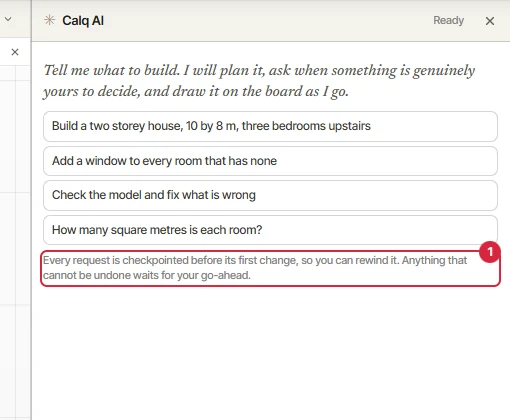
Calq AI keeps a point to come back to before the first change of every request, and anything that cannot be undone waits for your go-ahead, as the drawer says under its suggestions (1).
On a signed-in board, three buttons under the composer say how it works on the next request:
- Plan first: it writes the plan and changes nothing until you approve it.
- Ask first: every change waits for your go-ahead, drawn in redline first.
- Build: it builds as it goes.
Options beside them set the side of the entrance and whether each change is reviewed. Stop, or Esc, halts a request at any time.
02Steps, then one summary
While it works, a request is drawn as its work: its plan ticking as each part is done, and one line per step: its state (a tick when done), its name, what it changed in words, and Show, which selects on the board what that step made. Pressing a step's name takes the views to what it made.
When it is done, the request folds into one summary: done or stopped, how many steps, and what changed in all. Open it to see the plan and its steps again. A step that has something to pick or read, options or a table, keeps its card in the thread.
03Show, Keep, Undo
Under the summary of a request that changed the model:
- Show on the board selects everything it made, in every view.
- Keep settles it: the request reads as kept.
- Undo puts the model back as it was before the request. Changes made after it go too, so Calq AI asks first.
One step alone can be taken back as well: hover its line and press Undo, where nothing newer stands on what it made. Ctrl + Z still undoes on the board, one change at a time.
04Conversations
A model keeps its conversations. Press the title in the drawer's head to see this model's conversations: find one, start a new one, rename or take one out. A conversation is titled from its first request and kept whole while the model lives.
The menu beside it holds what Calq AI keeps for you: its memory, the playbooks it follows, the history, notes, your standards and the project's limits.