 Calq
CalqLearn Calq: a building from A to Z / Part 13 Calq AI and outside assistants
Connect an outside assistant
Give ChatGPT, Claude or any assistant that speaks MCP the one address of Calq, say yes once, and it works on your models with the tools of Calq AI.
You will see how an assistant you already use reaches your Calq models, where you say yes, how to add Calq in each assistant and how to take it away again.
Calq speaks the Model Context Protocol (MCP), the open standard by which an AI assistant reaches outside tools, and signs an assistant in by OAuth 2.1, the web's standard sign-in: an assistant never sees your password.
01One address, one yes
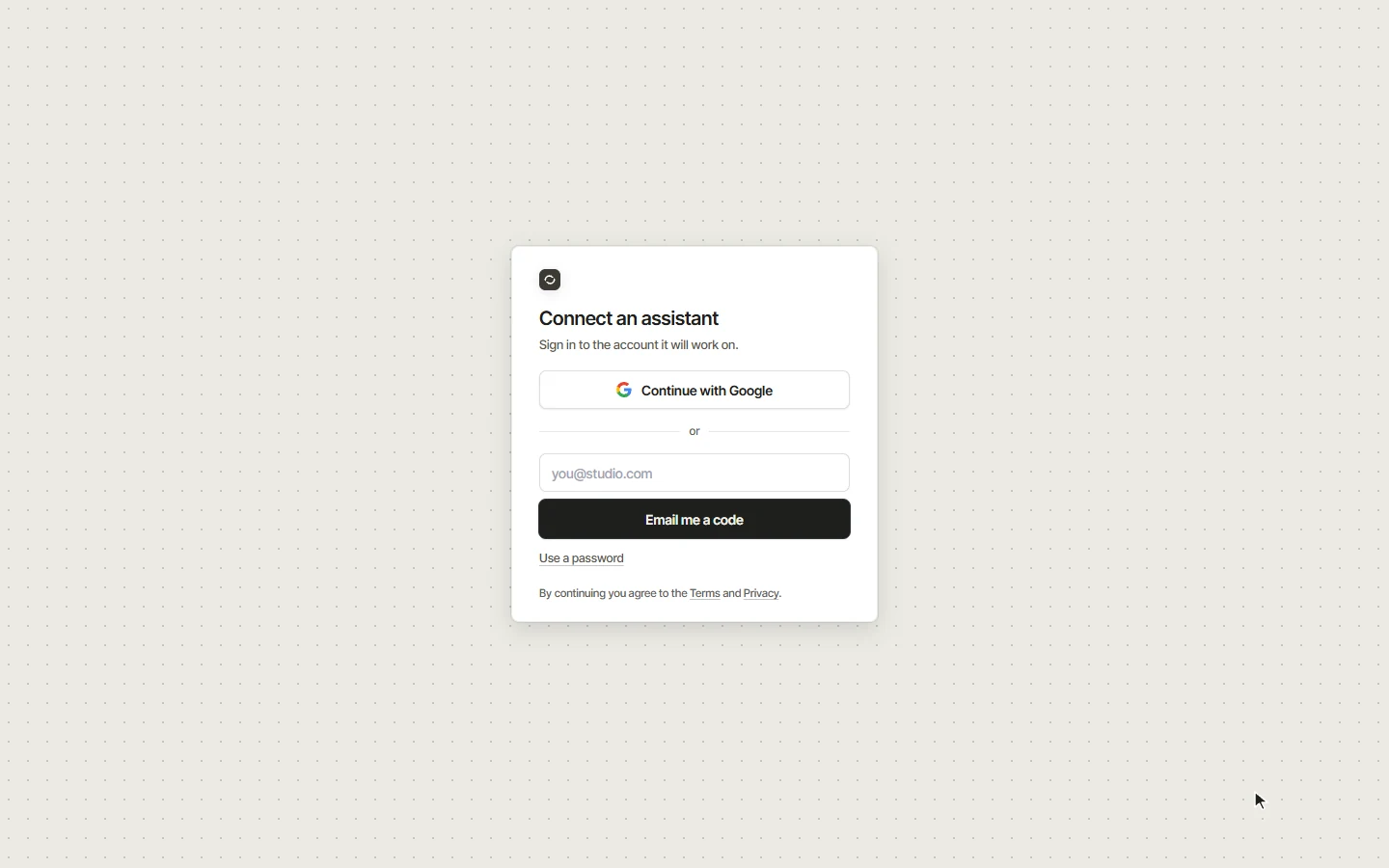
Calq has one address for every outside assistant: https://api.calq.live/mcp. Give it to the assistant once. The first time it calls, the assistant opens Calq in your browser at calq.live/connect/authorize, and you say yes there, signed in to your Calq account.
Once connected, the assistant lists your models, makes a new one and works on a model with the tools Calq AI uses on the board: it draws, checks and looks at what it drew, and can show you the drawing in the conversation. What it does reaches a board you have open on that model.
02Say yes in Calq
The address calq.live/connect/authorize first asks you to sign in to the account the assistant will work on. Signed in, the page names the assistant and where its answer goes, and lists what it can do (see your models, read and change them with the tools of Calq AI, make a new model) and what it cannot (sign in as you, see your password, plan or billing, or reach anything of Calq but your models). Allow connects it; Cancel sends it away.
03Add Calq to your assistant
The Assistants page of your Account shows the address with a button to copy it, and how to add it in each assistant:
- ChatGPT: Settings, Apps and connectors, add a connector (an MCP server). Paste the address and choose OAuth.
- Claude: Settings, Connectors, add a custom connector, and paste the address.
- Claude Code: run claude mcp add --transport http calq https://api.calq.live/mcp once, then /mcp to sign in.
- Any other assistant that speaks MCP (Cursor, VS Code, Gemini CLI, your own agent): give it the address as a remote MCP server. It finds the sign-in by itself.
04What it may run, and how to stop it
Any signed-in account may connect an assistant. The few tools that run an AI model or a browser on Calq's side, such as reading a drawing or a photo, need a plan: see calq.live/pricing. A file Calq makes for the assistant, an IFC or a PDF set, comes back as a calq.live link that opens with your own sign-in.
The Assistants page lists every assistant connected; Disconnect takes one away at once. Access tokens for a script or an API are made on the same page.