Calq
CalqLearn Calq: a building from A to Z / Part 7 Editing the model
Grips, constraints and pin
Reshape a wall by its grips, hold two walls parallel, and pin what must not move.
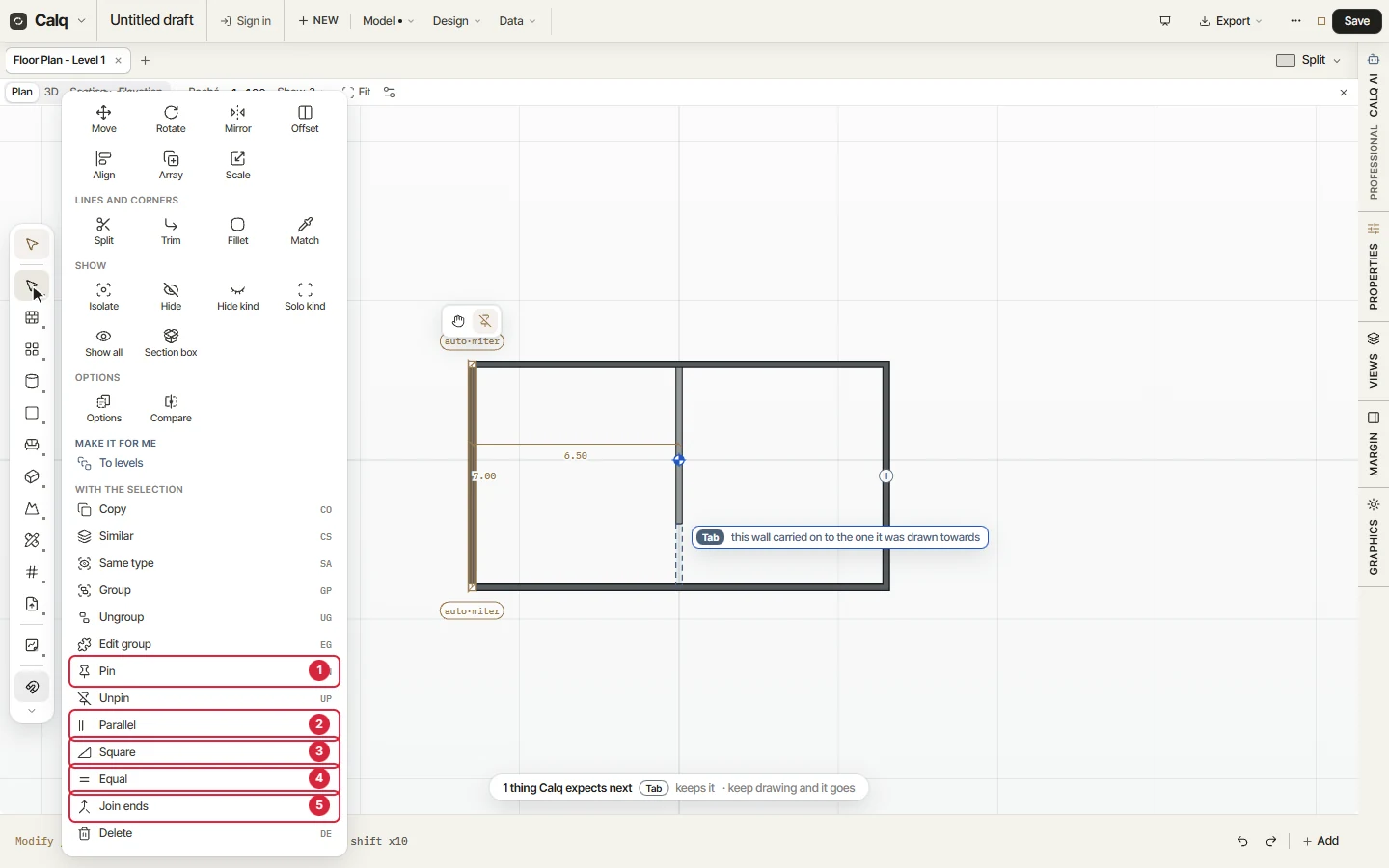
In the shop unit, you will shorten the partition by its end grip, hold it parallel to the east wall, and pin the west wall.
01Grips
Select the partition: each of its ends carries a grip. Drag the south end's grip north and the wall shortens to where you let go, here stopping 2 m short of the south wall to leave a way through.
A wall end left free is an offer: Calq marks the wall it was drawn towards and Tab carries it on again; carry on working and the offer goes. The bar over a selected wall holds its own tools: Bend (a grip at its middle to curve it), Edit profile (in an elevation or a section), Split, Rotate, Pick it up, Copy, Pin and Delete.
02Constraints
Select the partition, Ctrl + click the east wall, and press Parallel under With the selection: the two are held parallel from now on. Select the east wall and pull its south end out 1.5 m: the partition turns with it, and stays parallel.
A constraint is written into the model: whatever moves one of the walls later, the model solves the other again.
03Pin
Press Ctrl + Z to take the pull back. Select the west wall and press Pin (PN): it is locked against move, rotate, stretch and delete. A drag of it is refused and it stays where it is, and the bar over it offers Unpin (UP), the only way to free it.
04What holds the model
Under With the selection in the Edit toolset, each of these acts on what is selected:
- Pin and Unpin: lock the selection against change, and free it again.
- Parallel: two walls or beams held parallel.
- Square: two walls or beams held at right angles.
- Equal: two walls or beams held the same length.
- Join ends: the near ends of two walls or beams held together.
Ctrl + Z takes a constraint back like any other step.