Calq
CalqLearn Calq: a building from A to Z / Part 8 Views
Sections and elevations
Cut the building with a section, stand outside it for an elevation, cut it at any angle, and keep every mark on the plan.
On the sample house, you will draw a section across the hall, an elevation of the west side and a section at an angle, each opening as a view of its own, and find their marks on the plan.
This part works on Calq's sample house, a house of two storeys and a roof, with its plans, elevations and 3D view: the Do it in Calq button at the foot of the page opens it.
01Draw a section
Open the Annotate toolset of the palette and choose Section. Click where the cut line starts, then where it ends: here from west to east across the hall. The line snaps square to the model, and the section looks to the LEFT of the way you drew it, so this one looks north.
Section A opens at once as a tab of its own, at 1:100: the walls and floors it cuts, the doors beyond, the storey levels at the side and, at the bottom right, a key plan that shows where the cut is and which way it looks.
02Stand outside for an elevation
Go back to the plan's tab, open Annotate again and choose Elevation. Click once outside the building, where the viewer stands: here to the west. The West Elevation opens as a tab, and its marker stays on the plan.
Every view knows the others: the line of Section A is drawn on the elevation, with its bubble at the top, so you can see where it cuts.
03A section at any angle
On the plan, open the view's settings (the last button of the strip) and, at New section, choose Any angle. Click the start and the end of the line: it is kept at the angle you drew. The section opens as Section F1 - at an angle, with its scale bar and a key plan of the cut.
Jogged, in the same list, draws a section in steps: each click turns the line square, and Enter or a double-click ends it.
04The marks on the plan
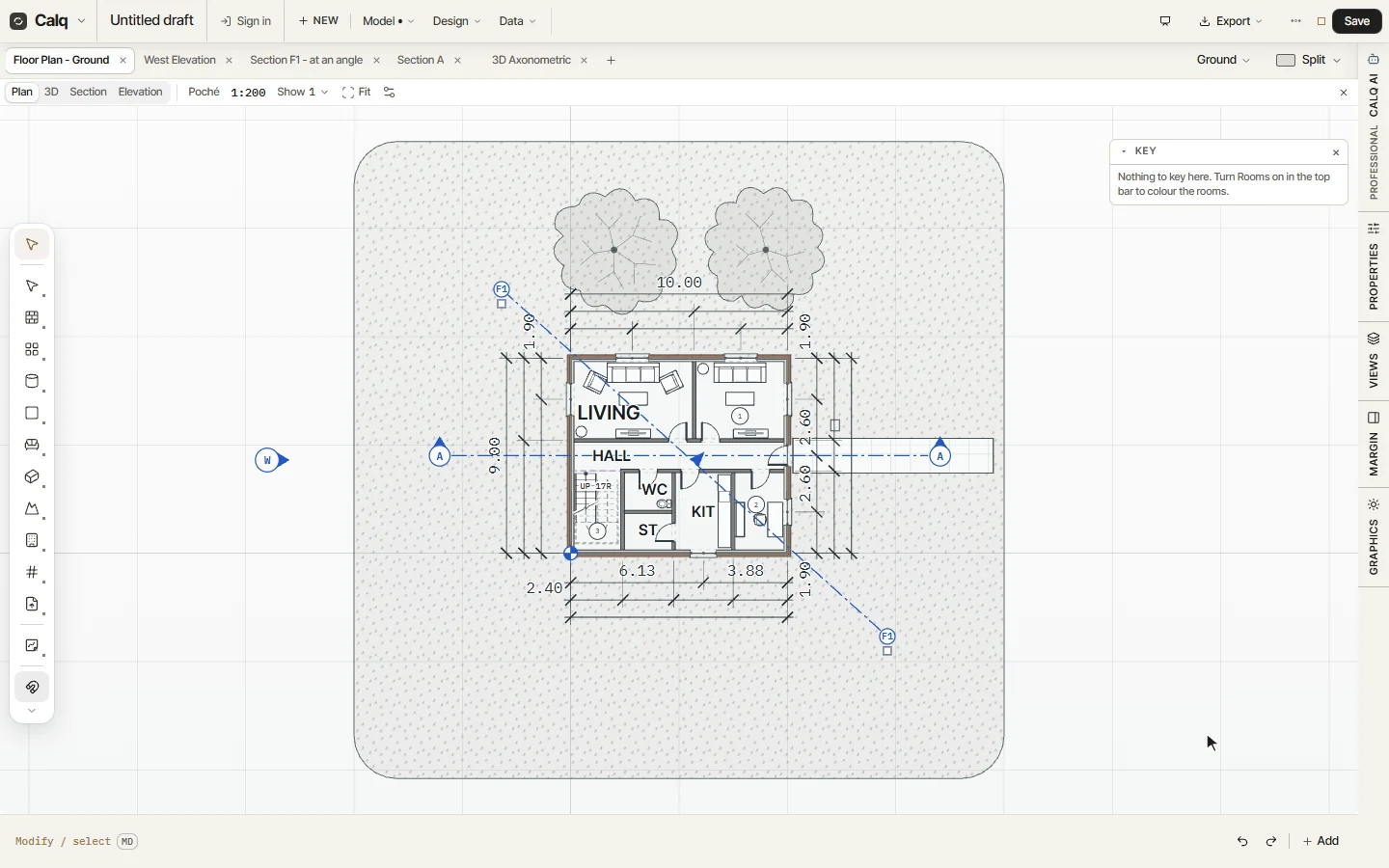
Back on the plan, every view you made has its mark: the bubbles of Section A at both ends of its line, the West Elevation's marker, and F1 at the ends of the angled line.
- Double-click a mark to open its view.
- Drag the line or its grips to move the cut; the view follows.
- Click the arrow of a section to turn the way it looks.
Sections + elevation marks, in the same settings, shows or hides the marks on this plan.