 Calq
CalqLearn Calq: a building from A to Z / Part 8 Views
Drawing styles and the scale
Choose how every view is drawn from one style, and give each view its scale from the one table of scales.
You will try four drawing styles on the whole model, open the scale table and draw the plan at 1:50.
01One drawing style for every view
Click Graphics on the right rail. Its styles are the look of the drawing in every view at once: the plans, the elevations, the sections, the 3D and the sheets. Professional holds Daylight, Mylar, Graphite, Card, Wash, Ink, Pencil, Blueline and Sepia; Artistic holds more. Here the plan is drawn in Blueline, Pencil and Sepia, then back in Daylight.
Under the styles, each part of the drawing can be tuned (outlines, edges, line weights, surfaces, materials, the cut, shadows, the sheet, annotation, categories): a change is kept as your tuning of the style, and Reset all takes it away. No style has a dark sheet.
02The scale table
Click the scale on the view's strip (1:200 on the sample's plan). The table holds every scale Calq draws at, each with what it is for: from 1:1 for a profile to 1:20 for a room or a wall section, 1:50 and 1:100 for the plans and sections of a building, 1:200 for a general arrangement, and 1:500 to 1:2000 for a site. Custom takes any 1 : n, and Auto lets the view choose.
The scale is the view's, never the zoom's. It sets the size of the lettering, the hatch and the marks; the zoom only shows the paper larger or smaller, and at 100% the drawing is the size it prints.
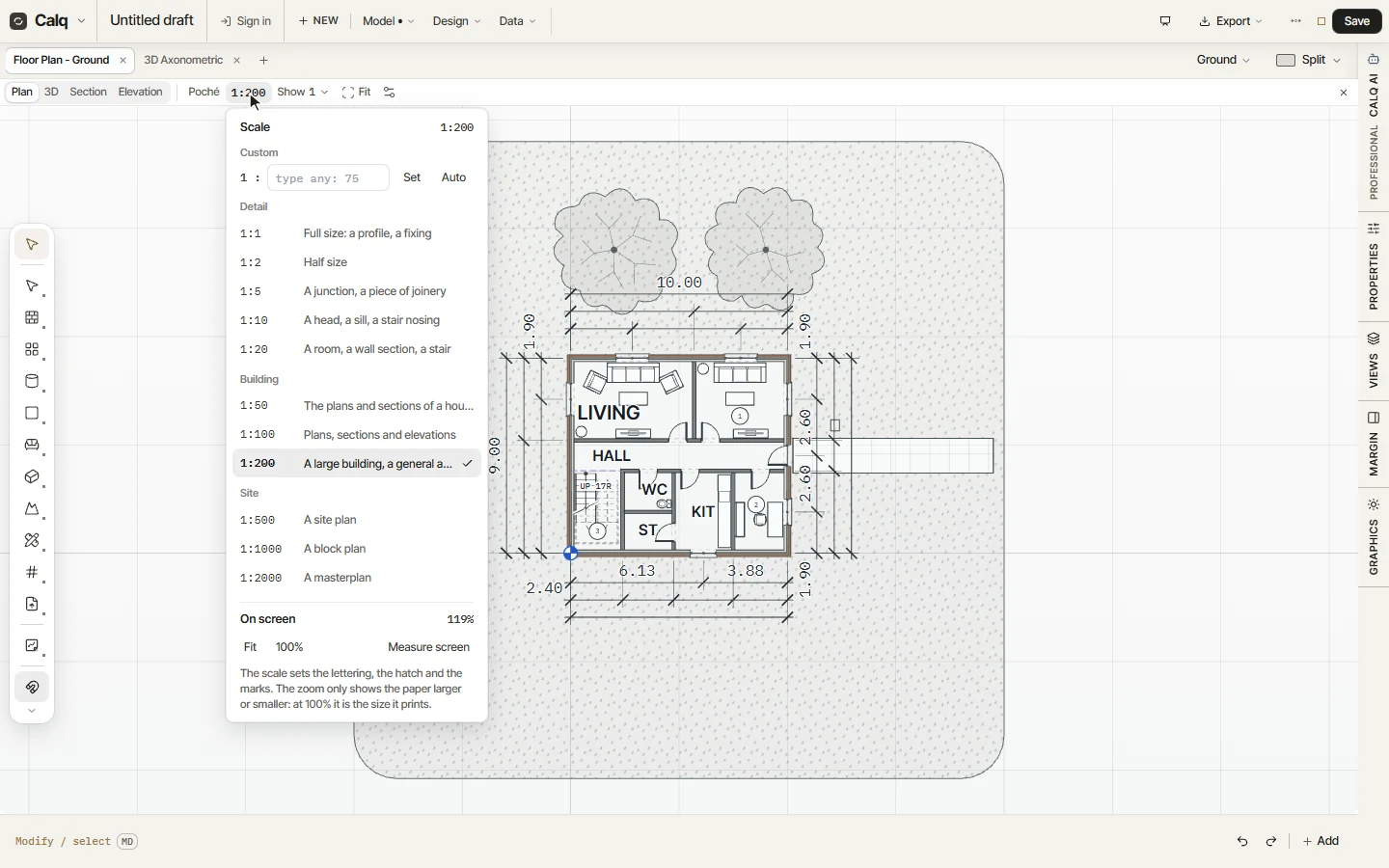
03Draw the plan at 1:50
Choose 1:50. The lettering, the hatch and the marks are drawn for 1:50: the door marks (D101 to D107) and the window marks (W101 to W106) come in, as they belong to 1:100 and larger, and so do the wall types, which belong to 1:50 and larger.
The scale bar and its reading stand on the drawing only while you zoom. In the view's settings, Scale bar - every view, Always keeps them on: here the reading at the bottom left says both the scale and the zoom, as the wheel zooms in.